Hello World: a guided tour of KPD
Build one small, complete data pipeline from an empty screen, step by step, and use every part of KPD on the way.
This tutorial is for your first hour with KPD. You build one simple pipeline from start to finish, and on the way you use every part of the tool: projects, the domain map, clusters and compute pools, schemas, connectors, topics, Flink, governance, access, data quality, dead letter topics, exports, notes and decisions. When you finish, you will have a design that validates cleanly, a picture of it, a design document and Terraform.
Every step says exactly what to click and what to type, and there are pictures throughout. Nothing here connects to Kafka or Confluent Cloud: KPD only designs, so you can't break anything.
What you will build
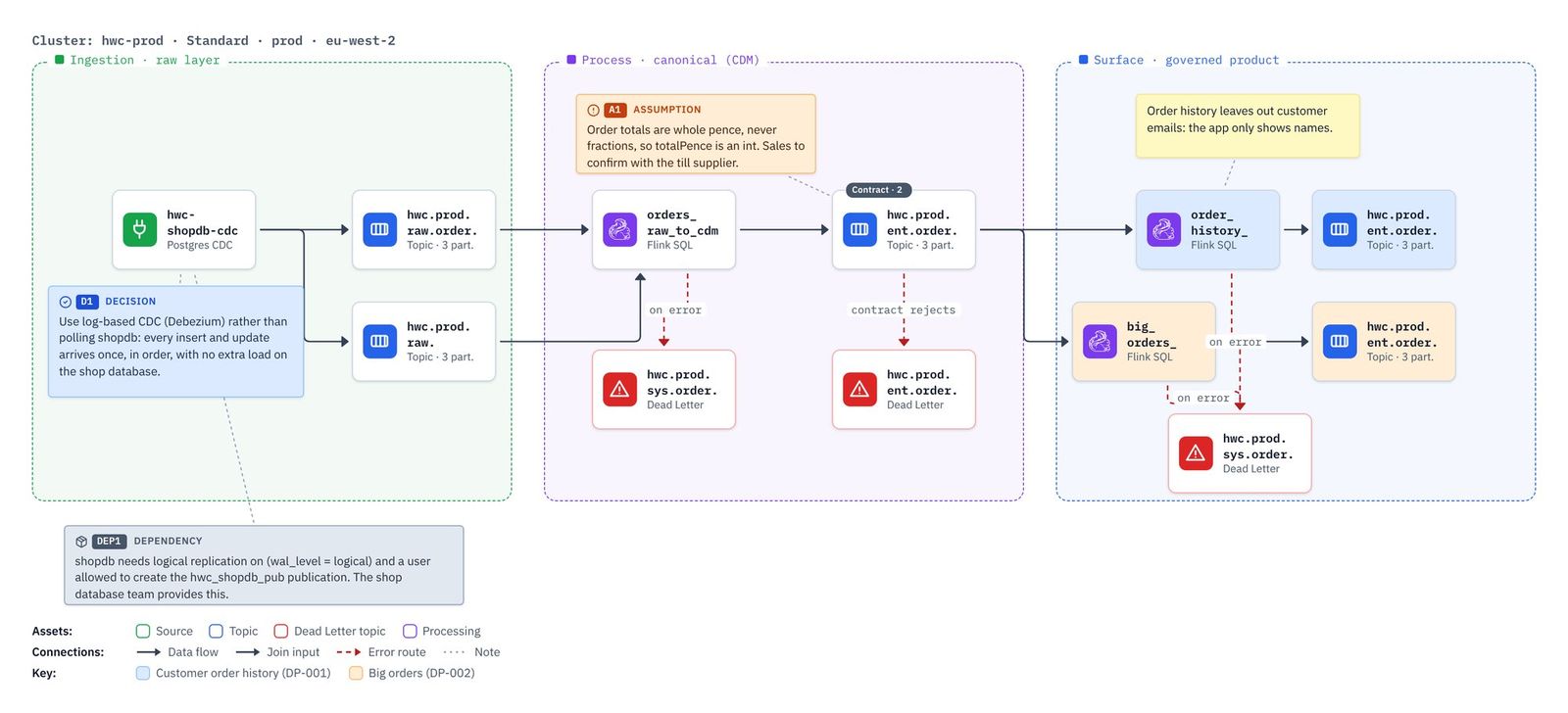
Hello Coffee Co runs coffee shops. Every order goes into a PostgreSQL database called shopdb. The Sales team wants two things from it, as orders happen:
- Customer order history: every order with the name of the customer who placed it, for the order history screen in the app.
- Big orders: orders of £20 or more, so store managers can spot them straight away.
So the pipeline is:
- A CDC connector watches two tables in the shop database,
ordersandcustomers, and writes every change to two raw topics. - A Flink statement joins each order to its customer and writes a tidy canonical order topic.
- Two more Flink statements read the canonical topic and each write a data product topic.
- Every topic has an Avro schema; data quality rules check the canonical orders; failures go to dead letter topics.
Three ways to follow it
Ten pages in this guide, one per part, with every picture. Start with Part 1 and follow the links.
The whole tutorial on one page, each part starting on a new sheet. Print it, or save it as a PDF, and tick the steps off as you go.
A small window beside KPD that shows one step at a time, with a progress bar, Go back and Next step, and a celebration at the end.
Your browser blocked the wizard window. See If your browser blocks the wizard below, or open the wizard in a new tab.
The guided wizard
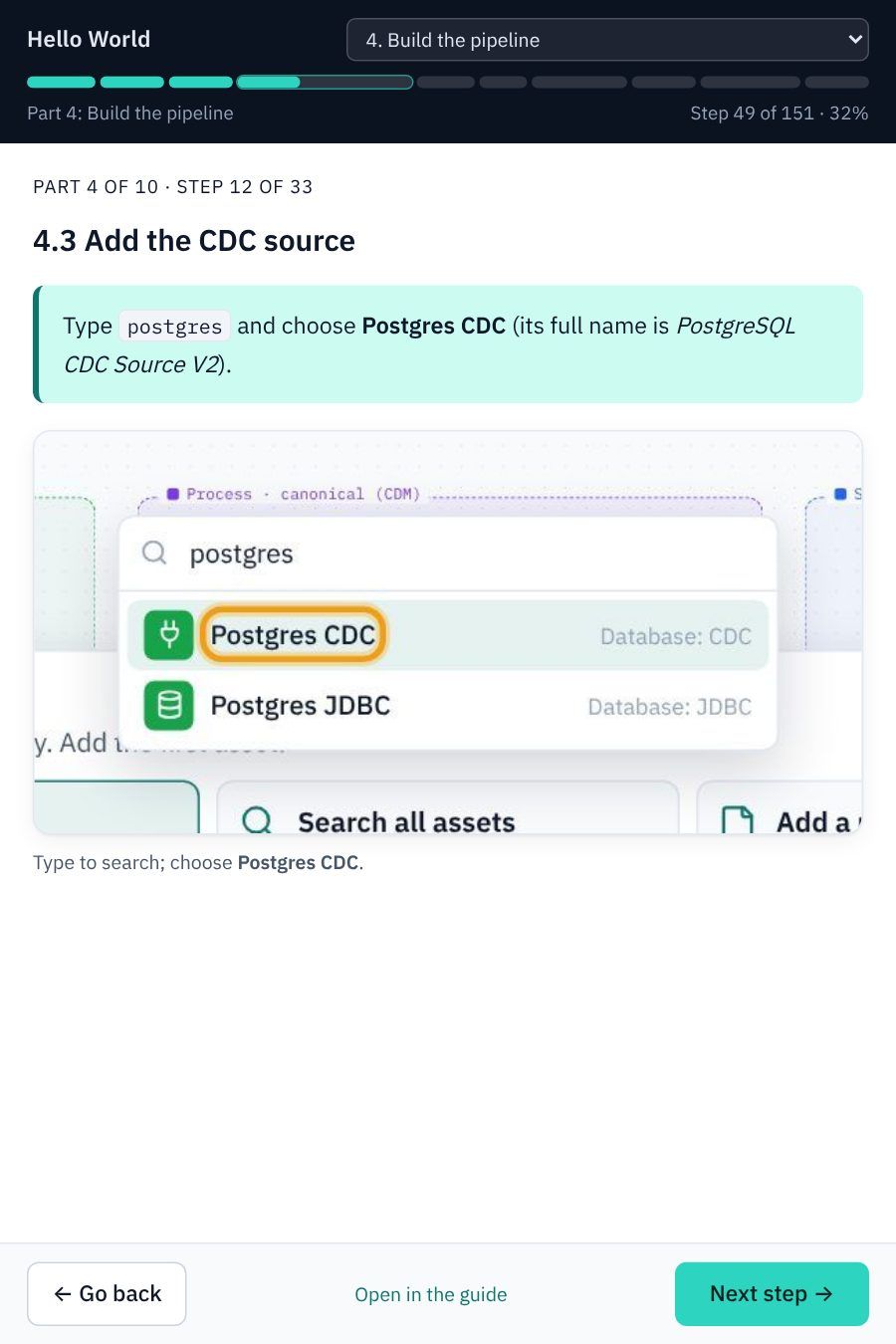
The wizard opens in its own small window, so you can put it beside KPD and keep your eyes on one step at a time:
- The progress bar at the top shows how far through the whole tutorial you are, and which part you are in.
- Next step and Go back move one step at a time (the → and ← keys do the same). The part list lets you jump to any part.
- Click a picture to open it full size.
- Close the window whenever you like: it remembers where you were, and opens there next time.
- Every part page has a Follow this part in the guided wizard link that opens it at that part.
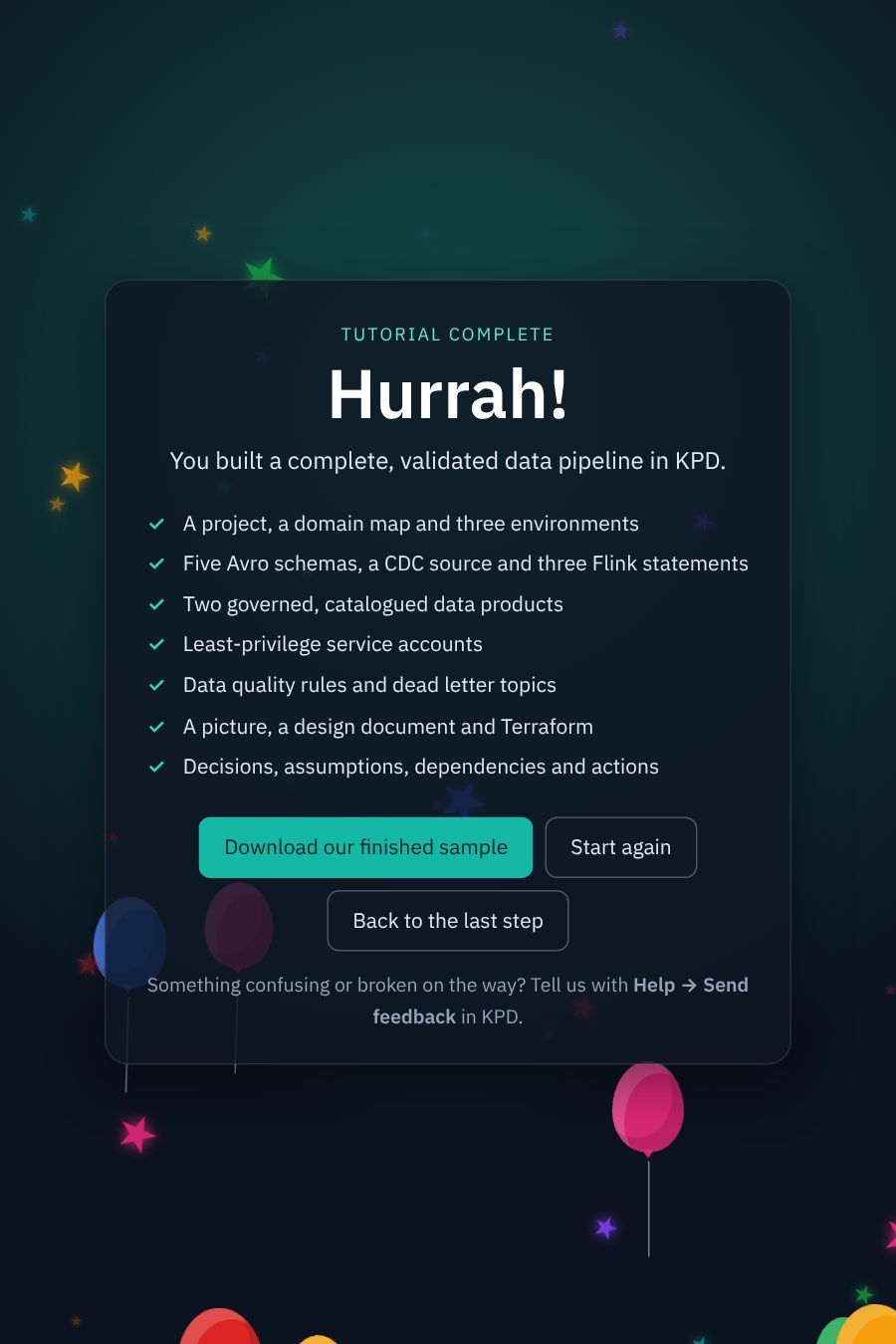
At the end of the last step, the wizard has a small surprise for you.
If your browser blocks the wizard
The wizard opens as a pop-up window. Because it opens when you click, most browsers allow it, but some settings and ad blockers stop it. When that happens KPD's guide shows a line saying so, with a link to open the wizard in an ordinary tab instead, and your browser shows its own warning:
| Browser | What you see | To allow it |
|---|---|---|
| Chrome, Edge | A small pop-up blocked icon at the right-hand end of the address bar. | Click the icon, choose Always allow pop-ups and redirects from this site, click Done, then click the wizard link again. |
| Firefox | A yellow bar under the address bar: Firefox prevented this site from opening a pop-up window. | Click Options (or Preferences) on the bar and choose Allow pop-ups for this site, then click the link again. |
| Safari | A pop-up window blocked icon in the address bar. | Click the icon to show the window once, or choose Safari → Settings for This Website… and set Pop-up Windows to Allow. |
Allowing pop-ups for the guide's site only affects this site, and you can turn it off again in the same place. If you would rather not, the wizard works just as well in a normal tab: use the open the wizard in a new tab link.
The ten parts
Do them in order: each part builds on the one before. Allow about an hour and a half in all. KPD saves only when you ask (unless you tick File → Auto save), so press Ctrl/⌘+S at the end of each part.
A new project from the Data Product (DPCF) template, with three clusters and two compute pools.
A Sales domain with a Store orders sub-domain, their owners and contacts, and the pipeline linked to them.
Describe the three clusters and the two Flink compute pools, and put the pipeline on production.
Avro schemas, a PostgreSQL CDC source, two raw topics, a Flink join to a canonical topic, and two data products.
Classification tags on every topic, and catalogue metadata on the two data products.
One account for the connector and one for Flink, each with just the access it needs.
Two contract rules on the canonical topic, three dead letter topics, and a clean Validate.
A PNG of the pipeline, the detailed design (LLD) document, and Terraform with permission advice.
Record why the design is the way it is, and make the diagram easy to read.
Export the whole project as a zip, import one, and download our finished copy.
How to read the pictures
- An orange outline marks what to click or fill in for that step.
- Text in
this styleis exactly what to type. Copy it if you like. - Menu paths are written like File → New project…
- Your screen may differ a little: the explorer, palettes and properties panel can be resized, and you may be in dark mode. Nothing in the tutorial depends on that.
Download the finished sample
If you get stuck, or want to compare your work with ours, download the finished Hello World Coffee project. It is exactly what you build in this tutorial, and it validates with no errors or warnings.
Download hello-world-coffee.zip (11 KB: the project file, the pipeline, its five Avro schemas and three SQL files)
To open it in KPD:
- Download the file above and keep it as a
.zip. Don't unzip it: KPD reads the zip itself. (Some browsers unzip downloads automatically; if yours did, zip thehello-world-coffeefolder up again.) - In KPD choose File → Import project (.zip)…
- Pick
hello-world-coffee.zip. KPD uploads it, checks it, creates the project and opens it. You see a message such as Imported project "Hello World Coffee". - If you already have a project called Hello World Coffee (for example the one you built), the import is named Hello World Coffee-1, so nothing of yours is overwritten.
- Open store-orders.kpd under Pipelines in the explorer and press Validate to see it pass.
Part 10 shows these steps with pictures: Share it: export and import.