5. Governance: tags and the catalogue
Classification tags on every topic, and catalogue metadata on the two data products.
Part 5 of 10 in the Hello World tutorial · Follow this part in the guided wizard · Printable version
Your browser blocked the wizard window. How to allow it, or open the wizard in a new tab.
Tags say how sensitive data is; they become Stream Catalog tags in Confluent Cloud, so people can search for them and policies can act on them. Business metadata describes a data product in the catalogue: what it is, who owns it, how good it is. The DPCF template created both for you.
The tags you have
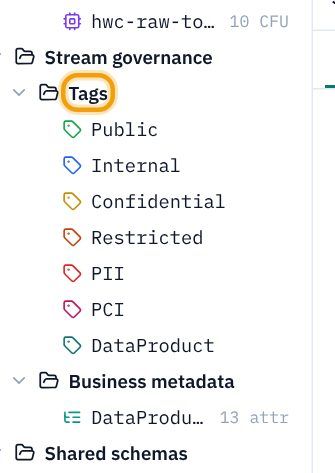
- In the explorer, open Stream governance → Tags. There are four classification tiers (Public, Internal, Confidential, Restricted), two overlays for special data (PII personal data, PCI card data) and DataProduct for published products.
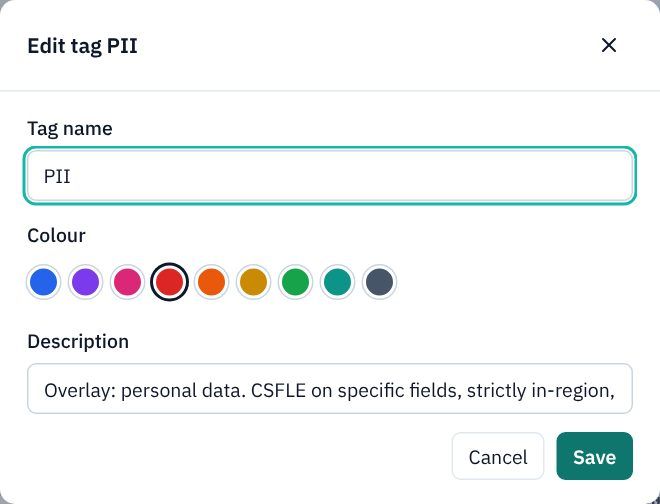
- Click PII to see what a tag holds: a name, a colour and a description. Click Cancel: there is nothing to change.
Tag every topic
- Click the topic
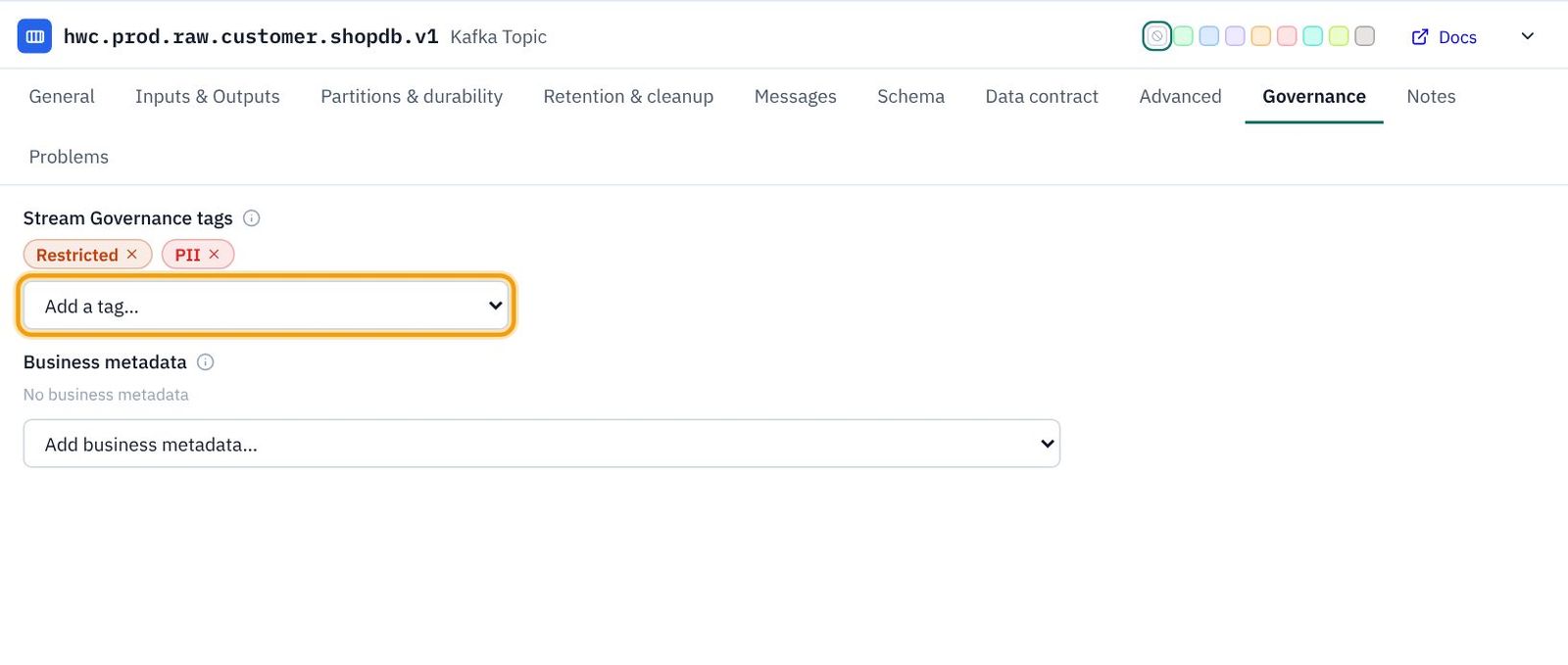
hwc.prod.raw.customer.shopdb.v1and open its Governance tab. - In Add a tag… choose Restricted, then open it again and choose PII. Each becomes a chip; click a chip's × to remove it.
- Tag the other topics the same way:
Topic Tags Why hwc.prod.raw.order.shopdb.v1Restricted Raw data is never published. hwc.prod.raw.customer.shopdb.v1Restricted, PII Raw, with personal data. hwc.prod.ent.order.cdm.v1Confidential, PII Cleaned, but still has names and emails. hwc.prod.ent.order.history.v1Confidential, PII, DataProduct A product, with customer names. hwc.prod.ent.order.big-orders.v1Internal, DataProduct A product with no personal data.
Catalogue the two data products
- Click
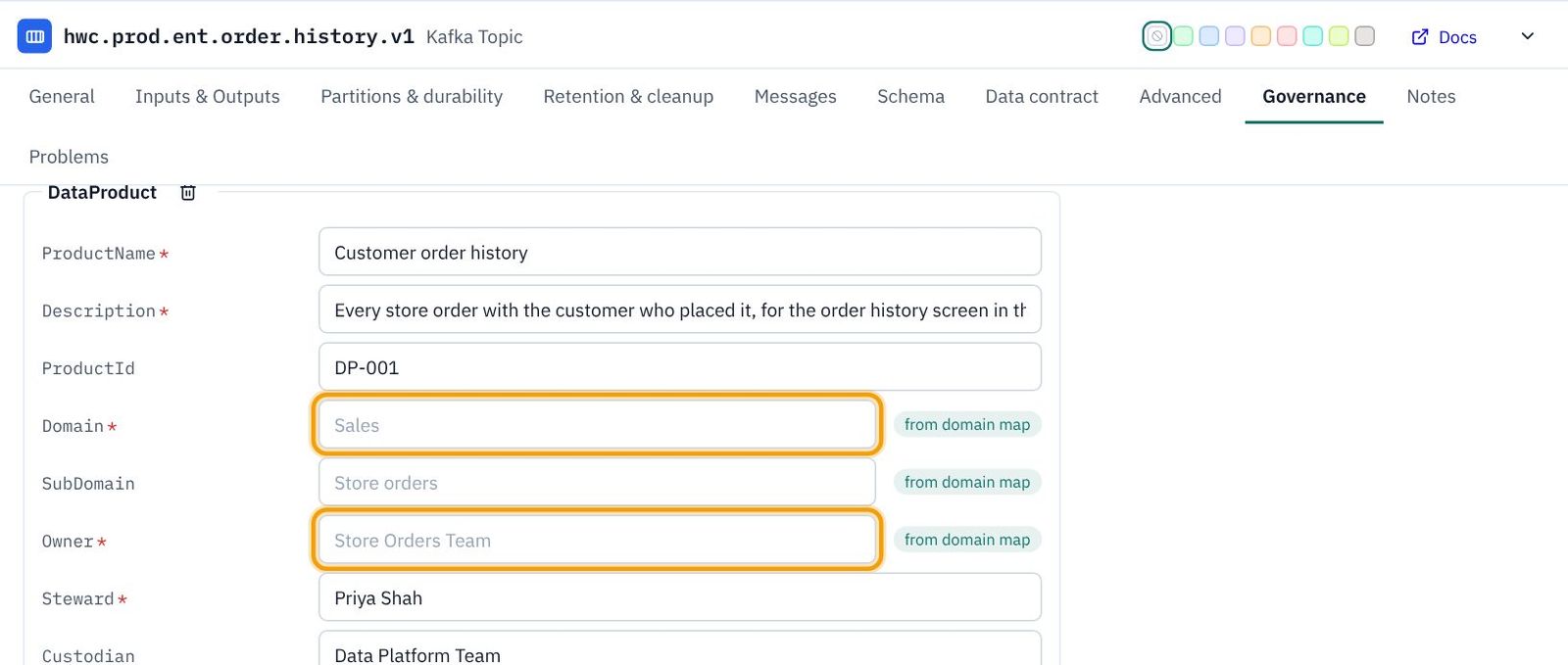
hwc.prod.ent.order.history.v1and open Governance. - In Add business metadata… choose DataProduct. Its attributes appear (a red * marks the required ones).
- Fill in:
Attribute Customer order history Big orders ProductName Customer order historyBig ordersDescription Every store order with the customer who placed it, for the order history screen in the app.Orders of £20 or more, as they happen, so store managers can thank big customers and plan stock.ProductId DP-001DP-002Steward Priya ShahPriya ShahCustodian Data Platform TeamData Platform TeamClassification Confidential, PIIInternalTier BronzeBronzeLifecycleState CandidateCandidateContractSummary Schema hwc.prod.ent.order.history.v1-value. Each order within a minute of being placed.Schema hwc.prod.ent.order.big-orders.v1-value. Each big order within a minute of being placed.
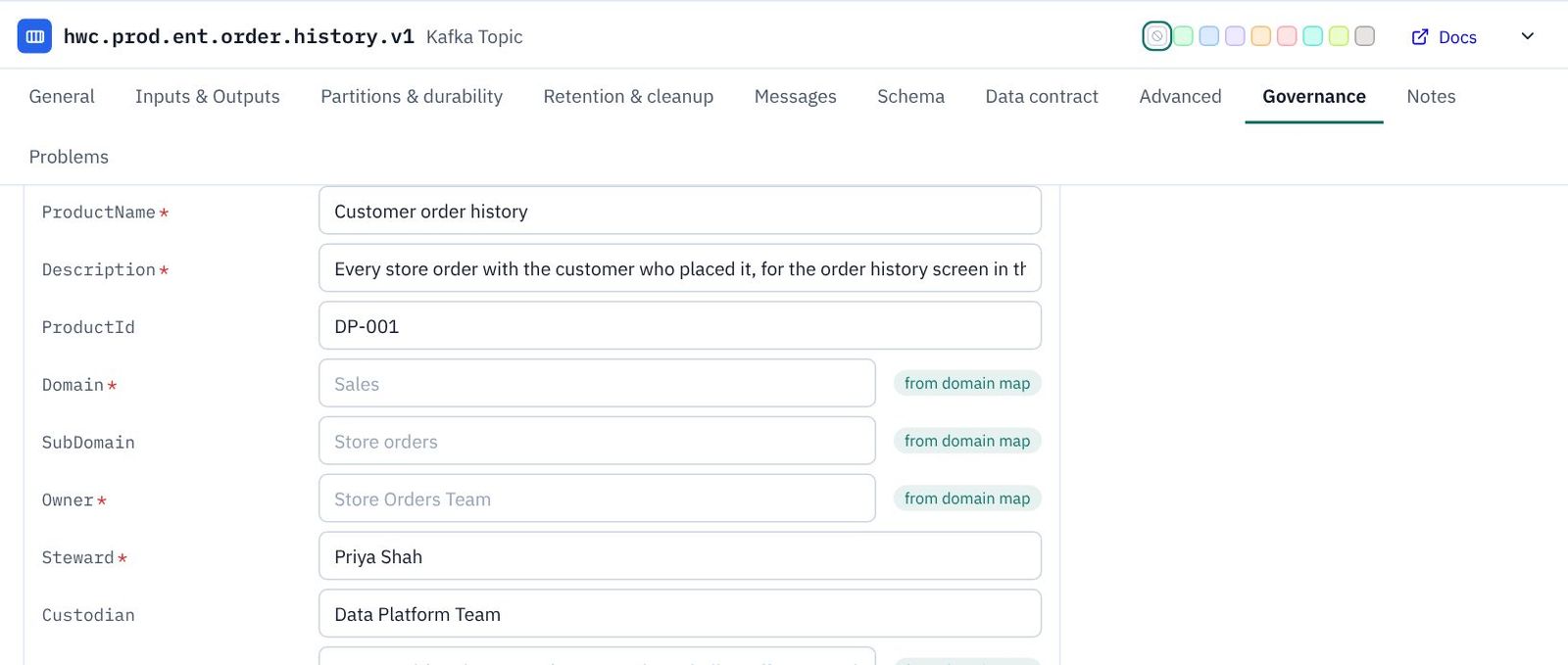
- Notice Domain, SubDomain, Owner and Contact: you don't type them. They show from domain map, because the pipeline is linked to Sales / Store orders (Part 2). Change the domain map and every product follows.
- Do the same on
hwc.prod.ent.order.big-orders.v1with the Big orders column.
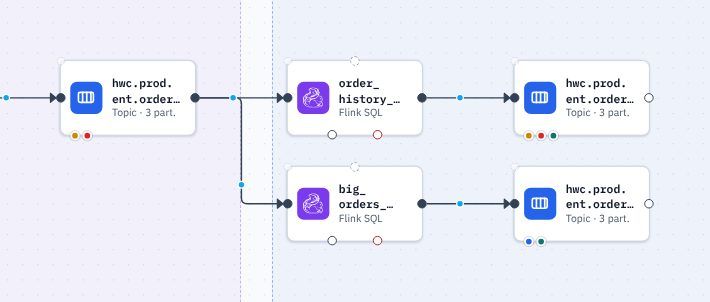
Back on the canvas, the coloured dots under each topic are its tags, so you can see the classification at a glance.
Save. Next: 6. Service accounts and role bindings.