7. Data quality and dead letter topics
Two contract rules on the canonical topic, three dead letter topics, and a clean Validate.
Part 7 of 10 in the Hello World tutorial · Follow this part in the guided wizard · Printable version
Your browser blocked the wizard window. How to allow it, or open the wizard in a new tab.
Data contract rules check each message as it is written to a topic. A message that fails can be sent to a dead letter topic (DLQ) instead of stopping the pipeline. Flink statements have their own Errors output for records they can't process. By the end of this part every failure has somewhere to go, and the project validates.
Two rules for the canonical orders
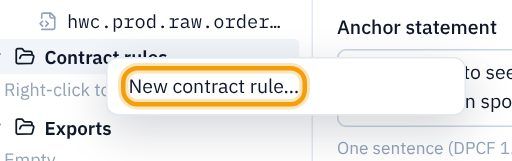
- In the explorer, right-click Contract rules and choose New contract rule…
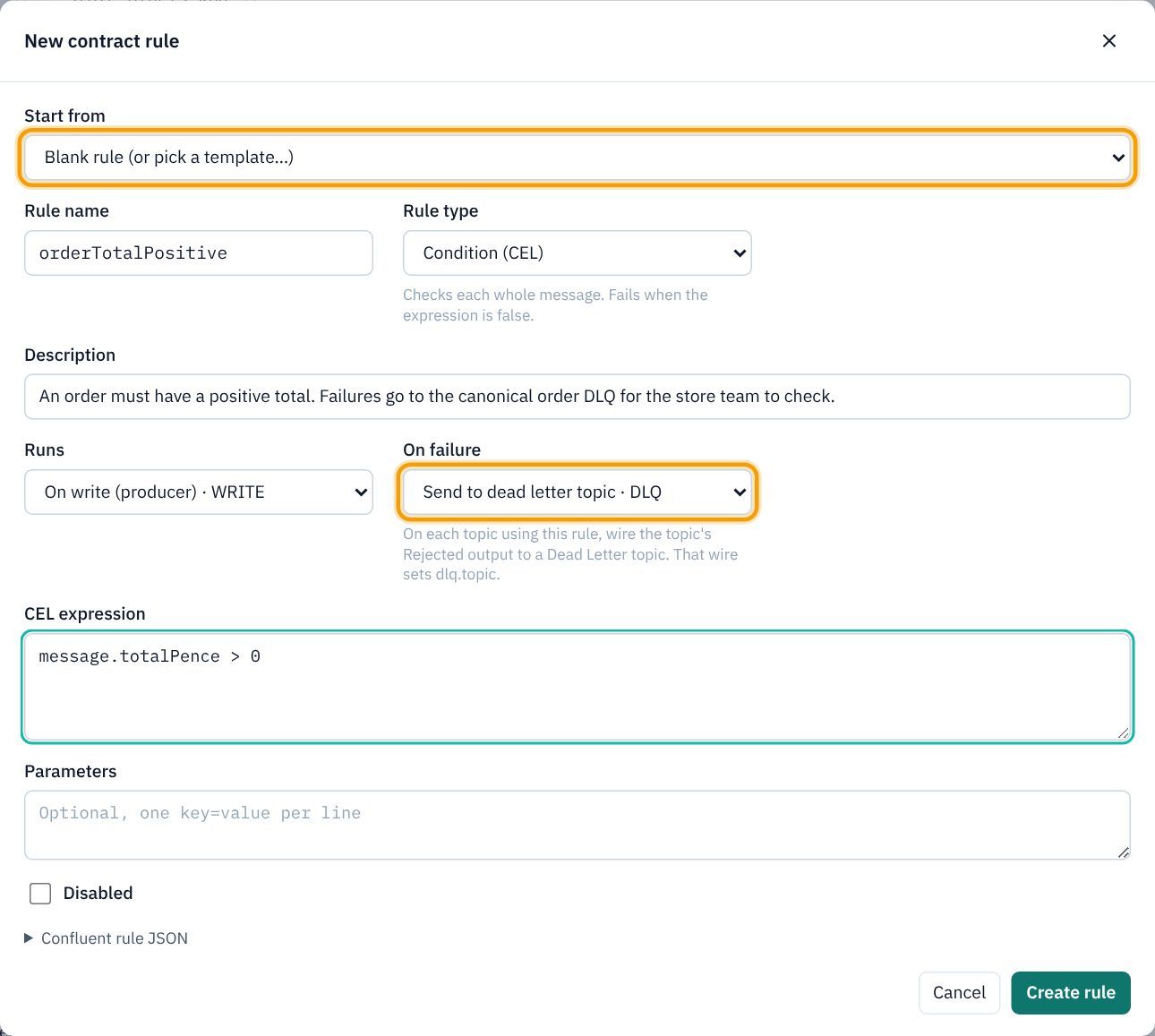
- Leave Start from as a blank rule (the list has ready-made templates to try another time). Fill in:
- Rule name
orderTotalPositive; Rule type Condition (CEL): it checks each whole message and fails when the expression is false. - Description
An order must have a positive total. Failures go to the canonical order DLQ for the store team to check. - Runs On write (producer) · WRITE; On failure Send to dead letter topic · DLQ.
- CEL expression
message.totalPence > 0
- Rule name
- Click Create rule.
- Create a second rule the same way:
customerNamePresent, Condition (CEL), descriptionEvery order must name its customer (the join found them). Failures go to the canonical order DLQ., WRITE, DLQ, expressionsize(message.customerName) > 0. - Click the canonical topic
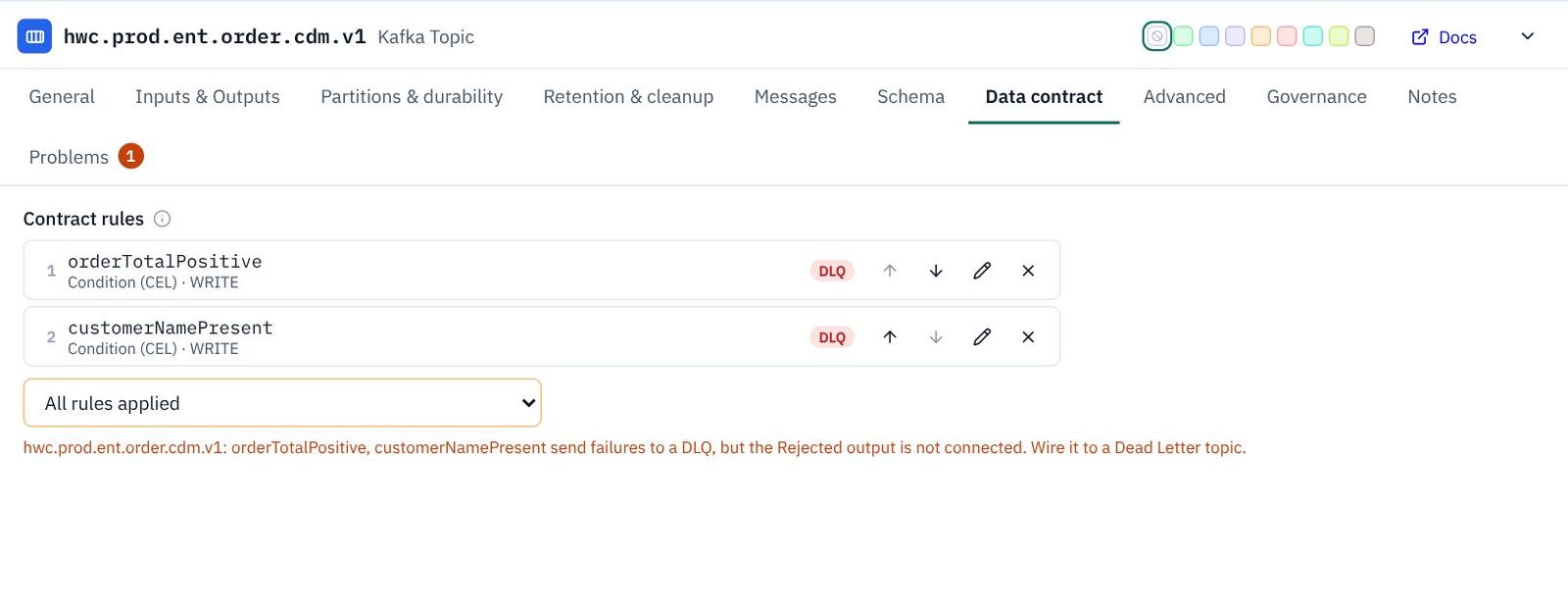
hwc.prod.ent.order.cdm.v1, open Data contract, and in Add a rule… choose orderTotalPositive, then customerNamePresent. They run in the order listed.
Send rejected orders to a dead letter topic
- Once the topic has a rule that sends failures to a DLQ, it grows a Rejected output on its bottom edge (and a Contract · 2 badge). The orange ! is KPD reminding you the rejects have nowhere to go yet. Click the red + under the topic.
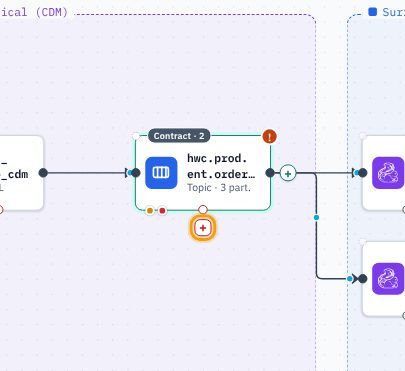
- Choose Dead Letter.
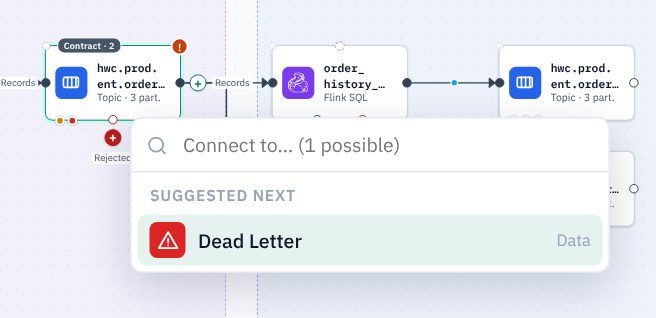
- On the dead letter topic's General tab: Name
hwc.prod.ent.order.cdm.v1.dlq(the canonical topic's name plus.dlq); DescriptionCanonical orders that broke a data quality rule, for the store team to check and fix at source. Holds customer details, so tagged like the canonical topic.; Replay strategy manual (someone fixes and resends them by hand). - Governance tab: tag it Confidential and PII. A DLQ holds the same data as its source, so it needs the same protection.
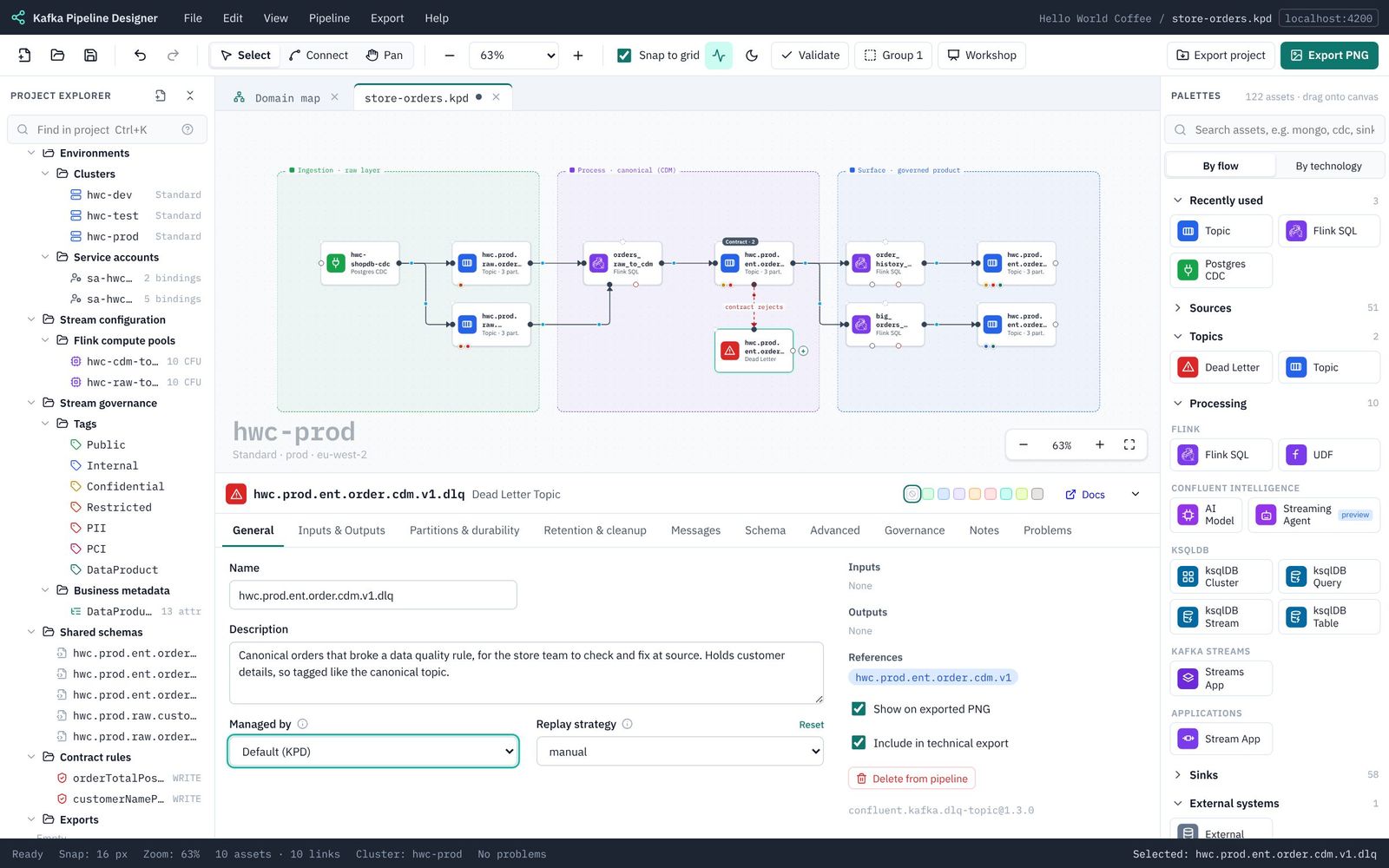
Catch Flink errors too
- Click
orders_raw_to_cdm. Its Errors output is the red + on its bottom edge. Click it and choose Dead Letter. - Name it
hwc.prod.sys.order.to-cdm.v1.dlq(sys, because it is a system topic), descriptionRecords orders_raw_to_cdm could not process (for example a value that would not convert), for the data team to inspect., replay manual, tags Confidential and PII.
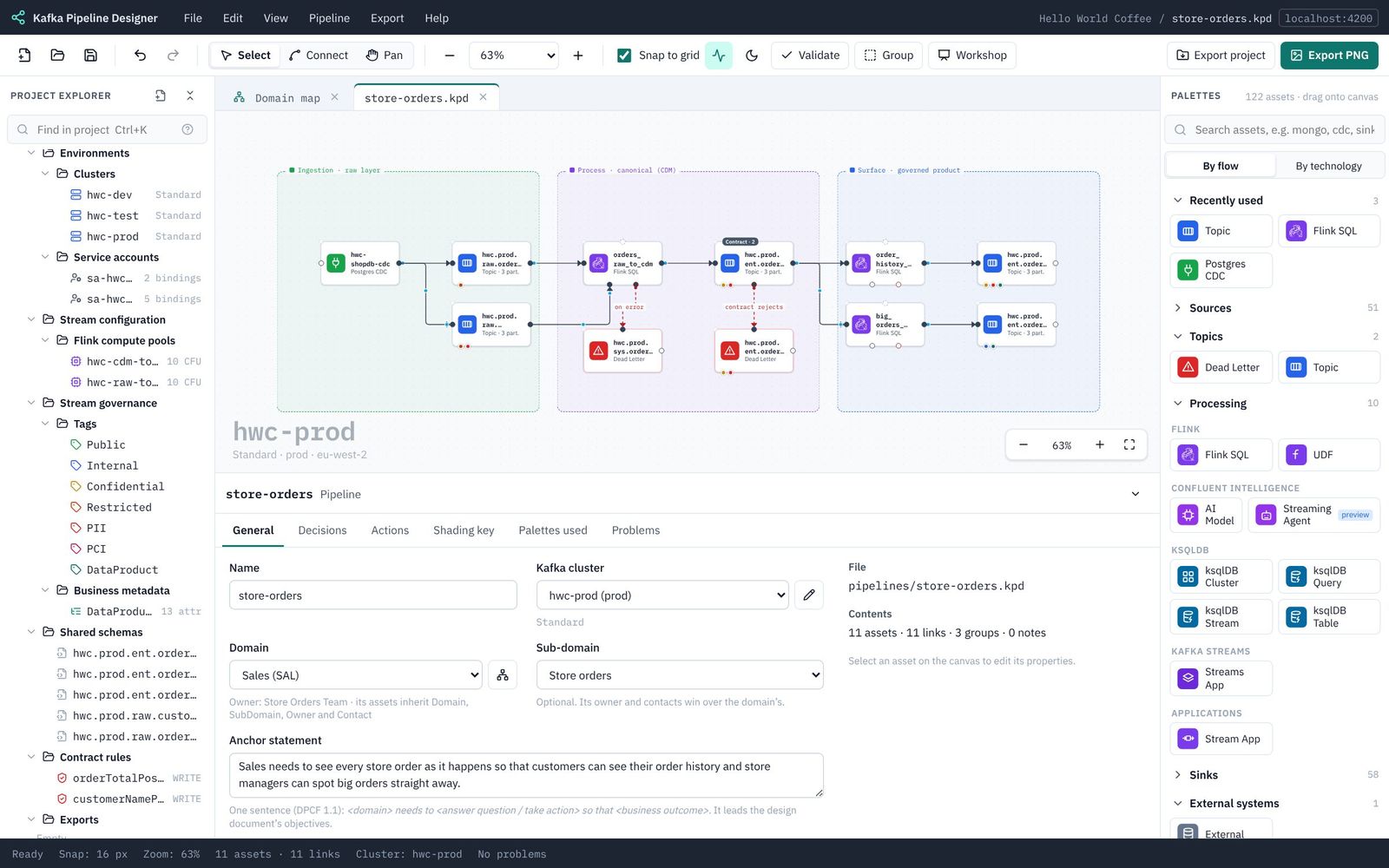
- Now the two data product statements. Click
order_history_productand click the red + on its Errors output.
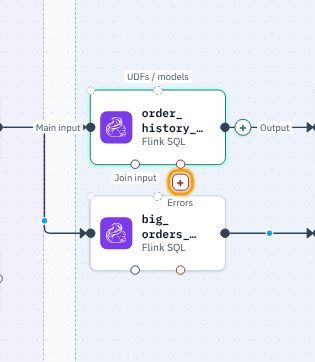
- Choose Dead Letter:
hwc.prod.sys.order.to-product.v1.dlq, descriptionRecords the two data product statements could not process, for the data team to inspect., replay manual, tags Confidential and PII.
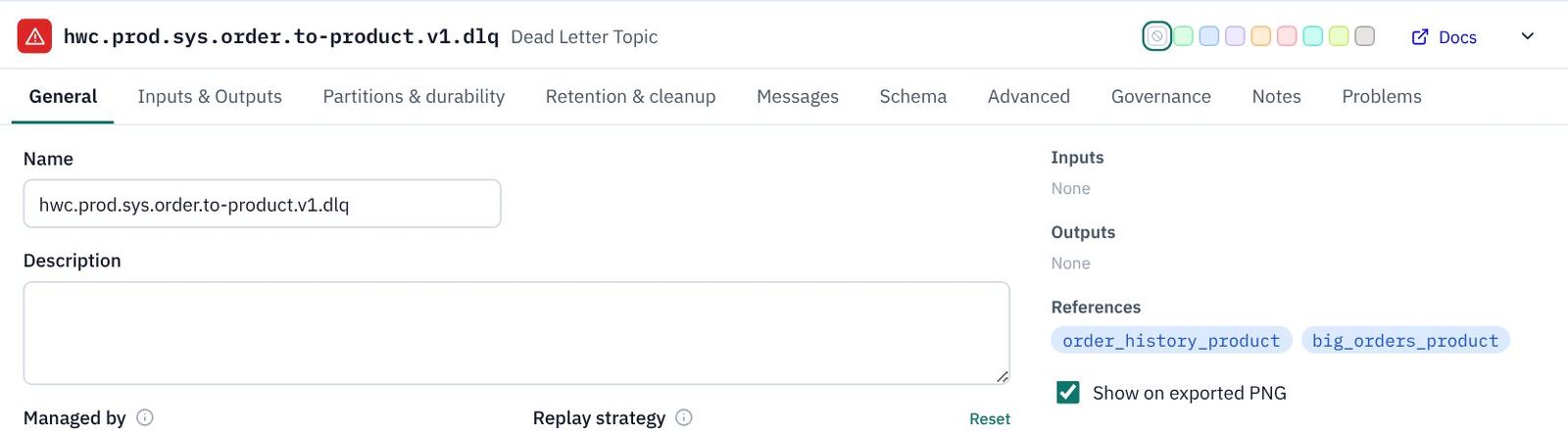
- One DLQ can serve both product statements. Drag from the Errors dot under
big_orders_productto the input dot on top of the new dead letter topic. - Tidy up: drag the new DLQ into the bottom of the blue Surface box, under
big_orders_product. If the line fromorder_history_productruns throughbig_orders_product, dragorder_history_producta little to the right so its line drops straight down beside it.
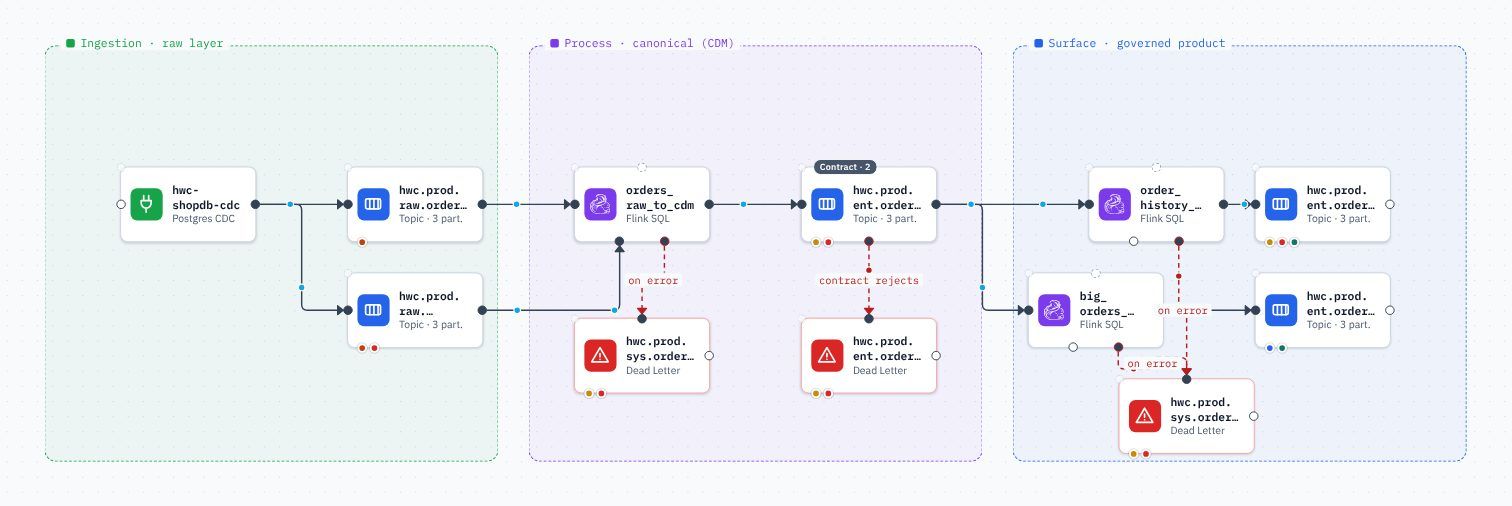
Validate the project
- Click Validate in the toolbar.
- KPD checks the whole project. You should see Project validates: No errors or warnings, and Terraform will generate.
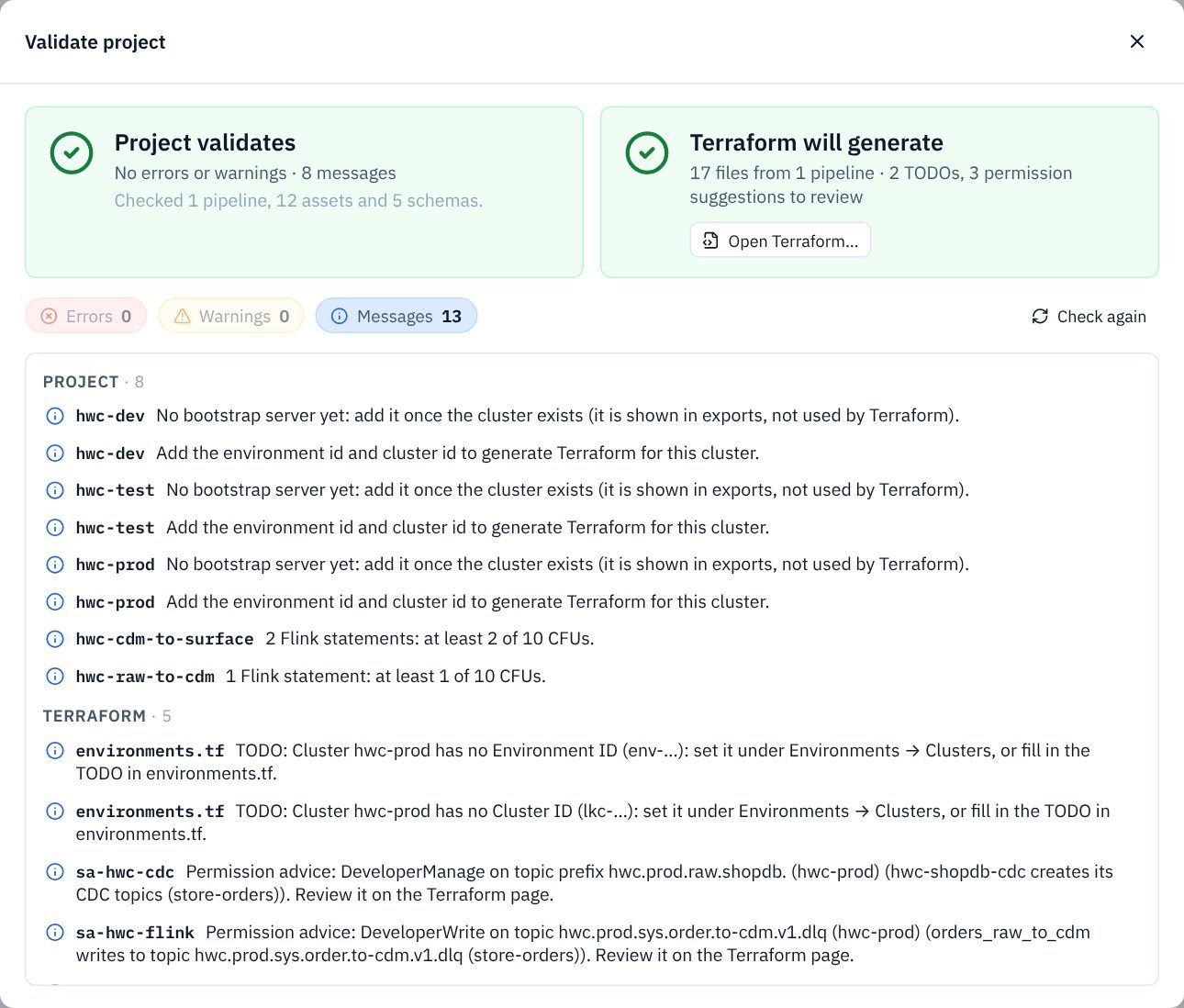
The messages are worth reading. Most say the clusters have no bootstrap server or ids yet: expected, because they don't exist yet. Two say how many CFUs each pool will use. The last ones are permission advice: the connector needs to create its topics (DeveloperManage), and Flink needs to write to the two sys dead letter topics, which its hwc.prod.ent. binding doesn't cover. You will accept that advice in Part 8.
Save. Next: 8. Export the picture, design document and Terraform.