4. Build the pipeline
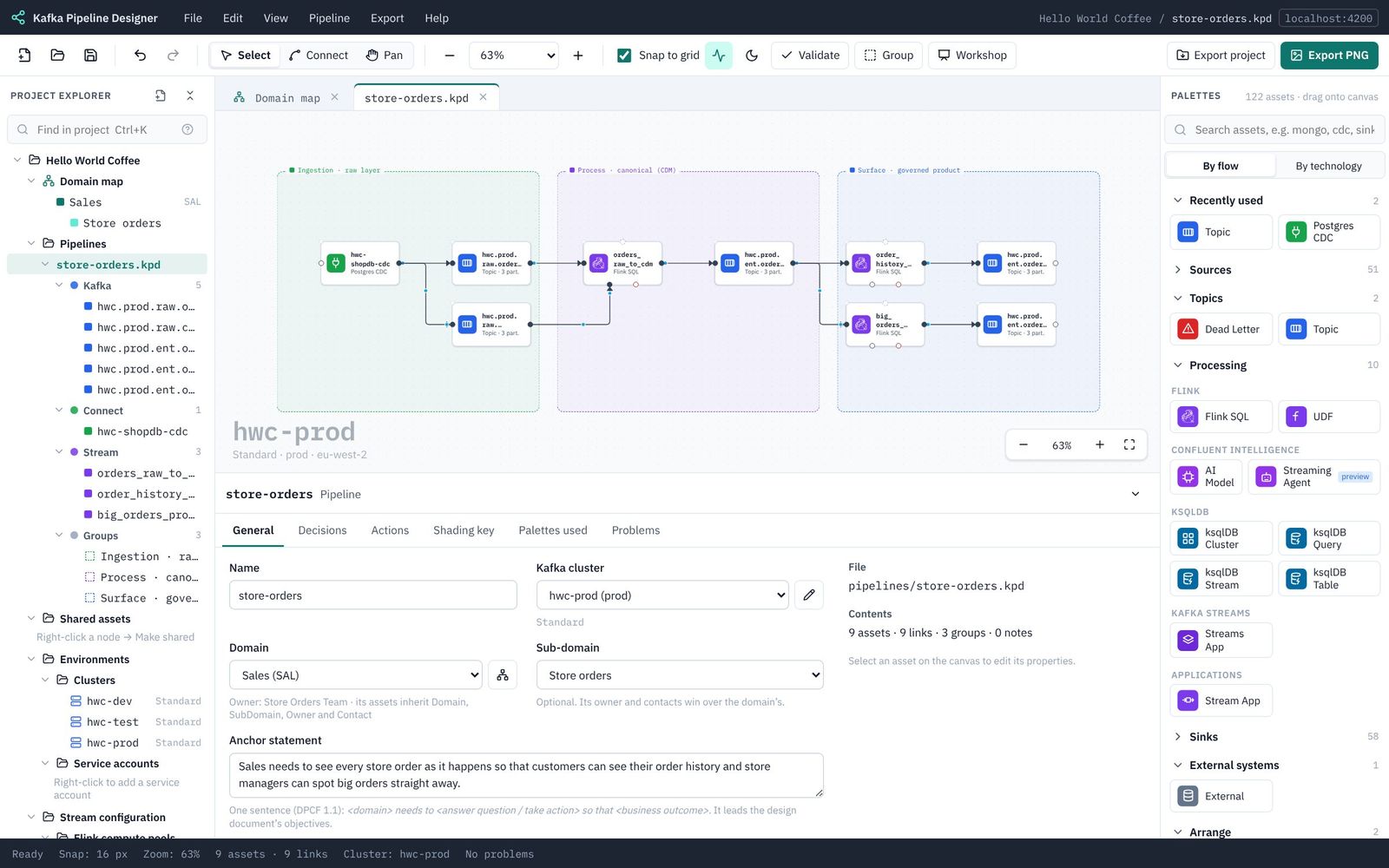
Avro schemas, a PostgreSQL CDC source, two raw topics, a Flink join to a canonical topic, and two data products.
Part 4 of 10 in the Hello World tutorial · Follow this part in the guided wizard · Printable version
Your browser blocked the wizard window. How to allow it, or open the wizard in a new tab.
This is the longest part: you build the whole pipeline. In order:
- rename the pipeline;
- create five Avro schemas;
- add the CDC source and its two raw topics;
- add the Flink join and the canonical topic;
- add the two data product statements and their topics.
4.1 Rename the pipeline
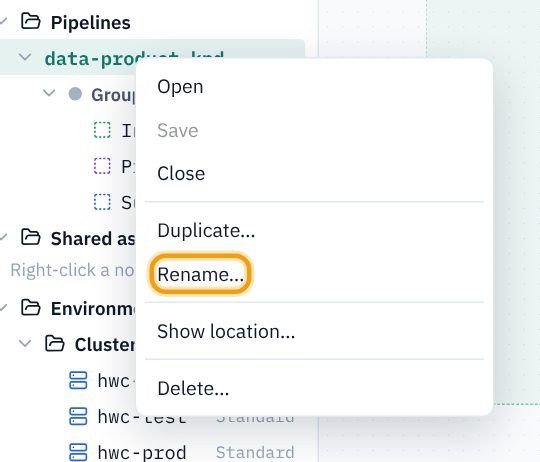
- In the explorer, right-click data-product.kpd under Pipelines and choose Rename…
- Type
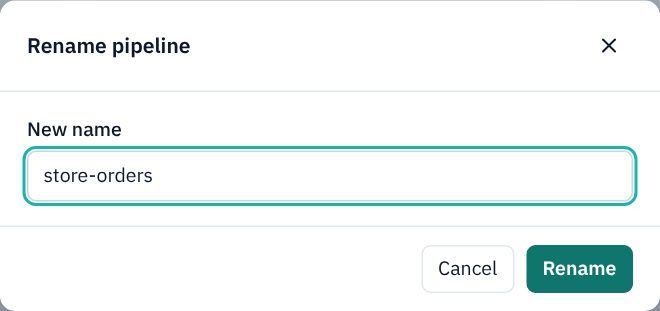
store-ordersand click Rename. The file becomesstore-orders.kpd.
4.2 Create the five Avro schemas
Every topic carries messages of a known shape, described by a schema. KPD has a visual editor for Avro, so you never need to write the JSON by hand. You need five: one for each raw table, one for the canonical order, and one for each data product. Their file names follow the topic names with -value on the end (the Schema Registry subject for a topic's values).
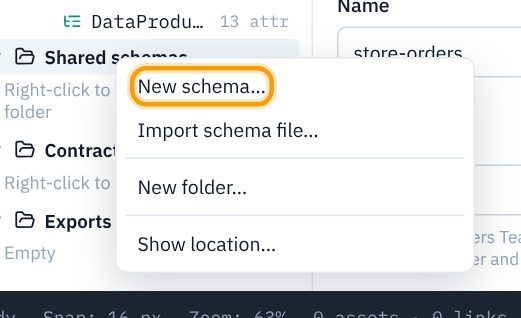
- In the explorer, scroll down to Shared schemas, right-click it and choose New schema…
- The New schema dialog opens with an example record. Keep Folder as Shared schemas (top level) and Format as Avro (.avsc).
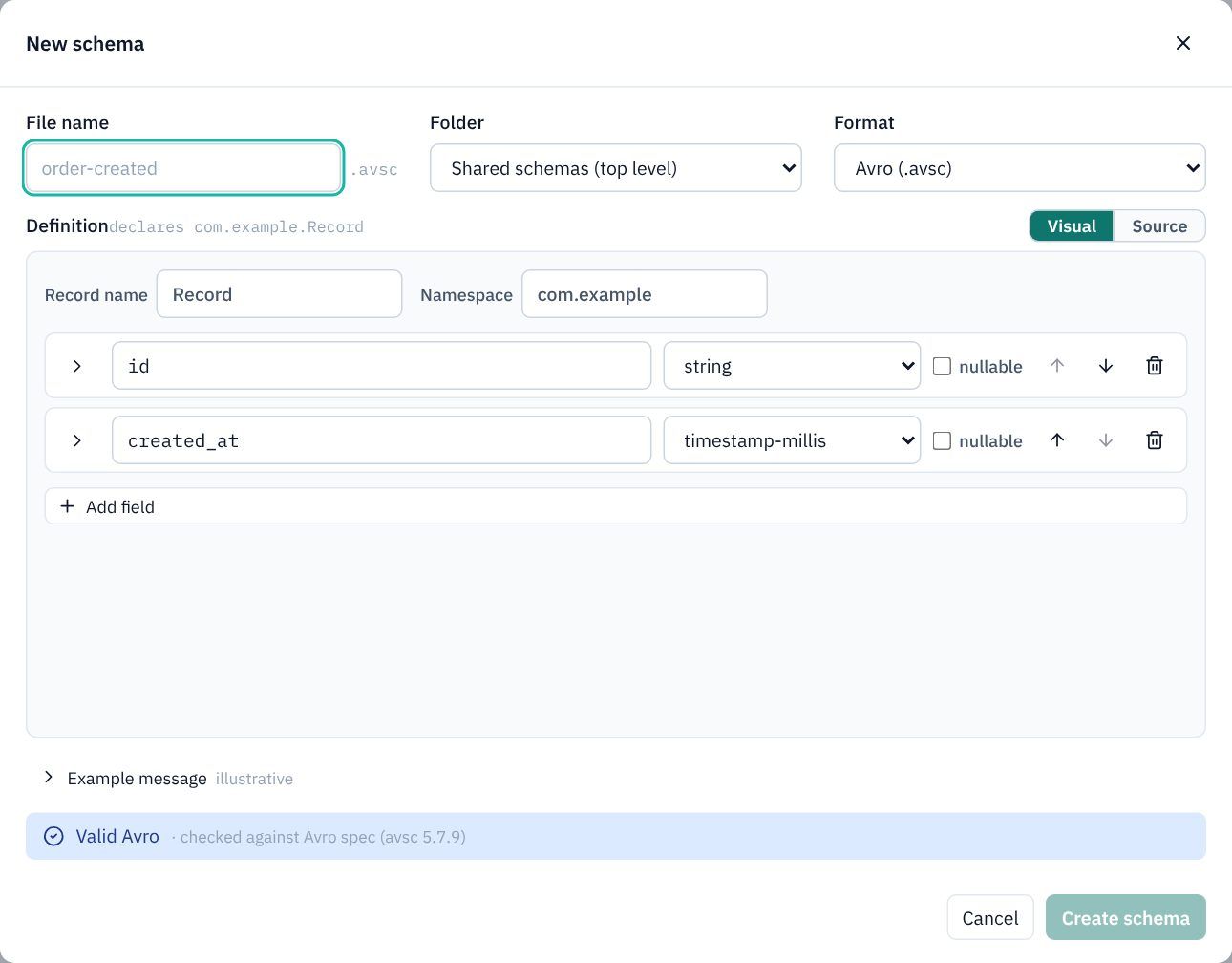
- File name:
hwc.prod.raw.order.shopdb.v1-value - Record name:
Order. Namespace:com.hellocoffee.raw - Change the two example fields and use Add field until you have these five. Type each name, then pick its type from the list (timestamp-millis is in the list too):
Field Type order_idlong customer_idlong store_idstring total_penceint ordered_attimestamp-millis
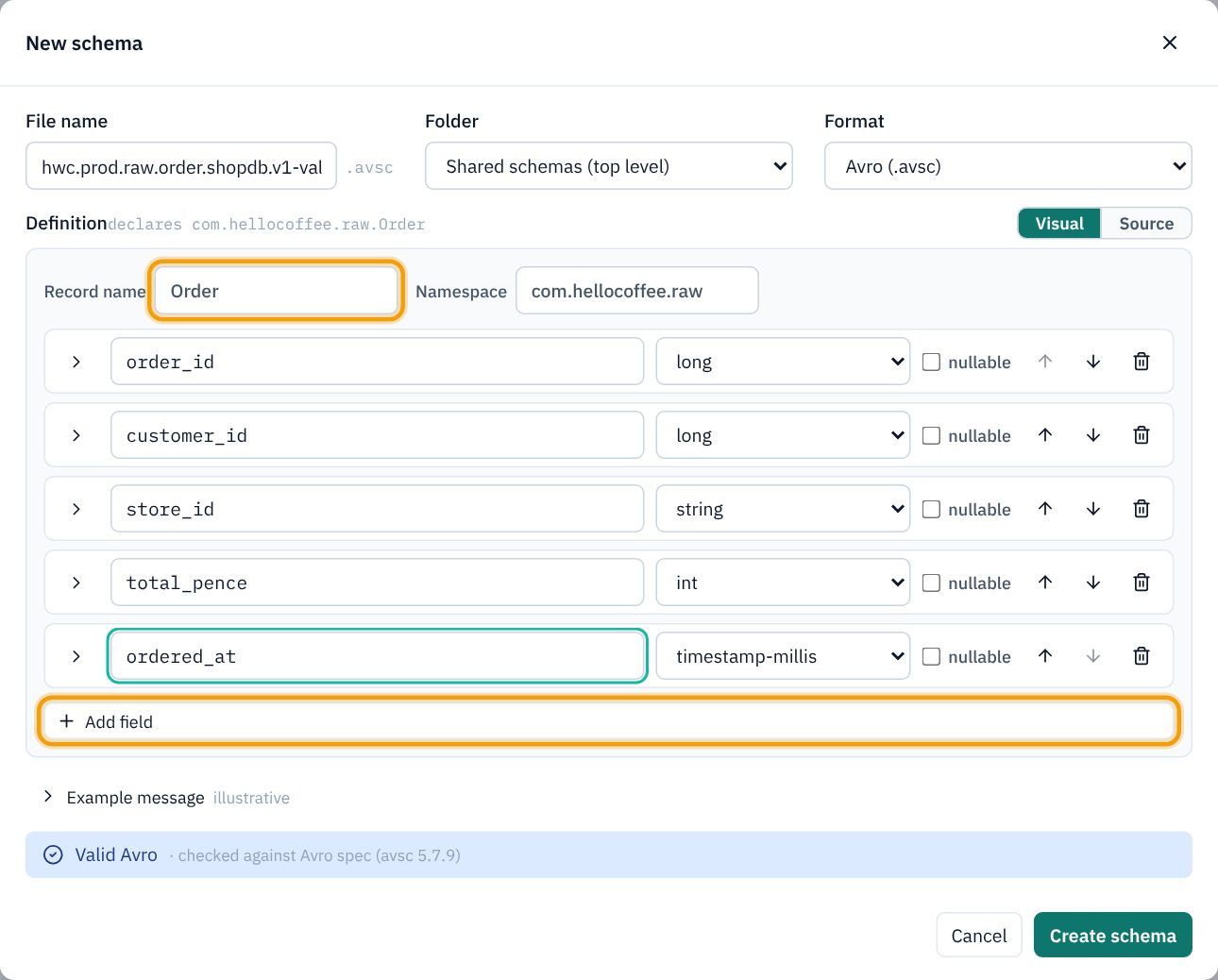
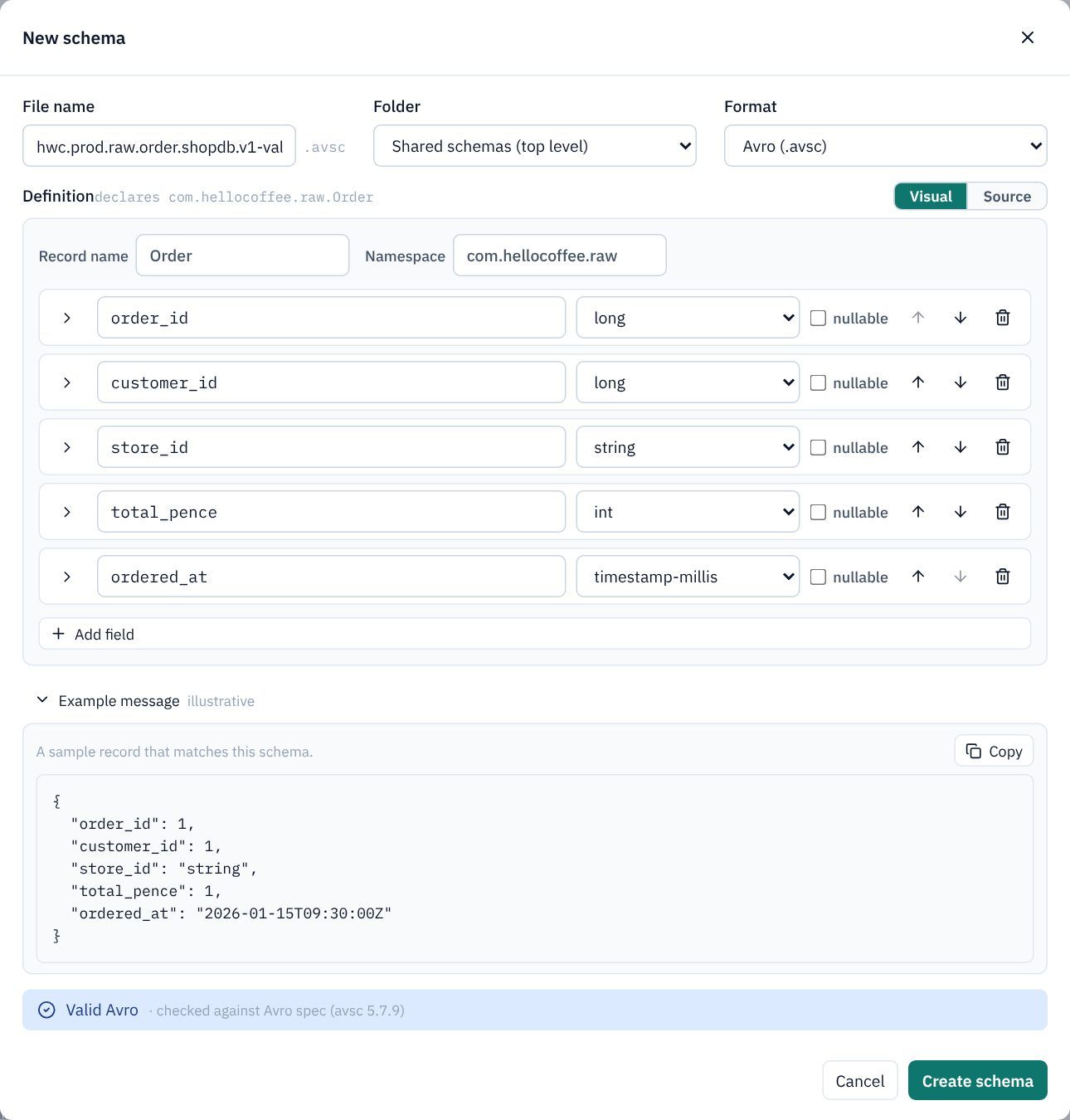
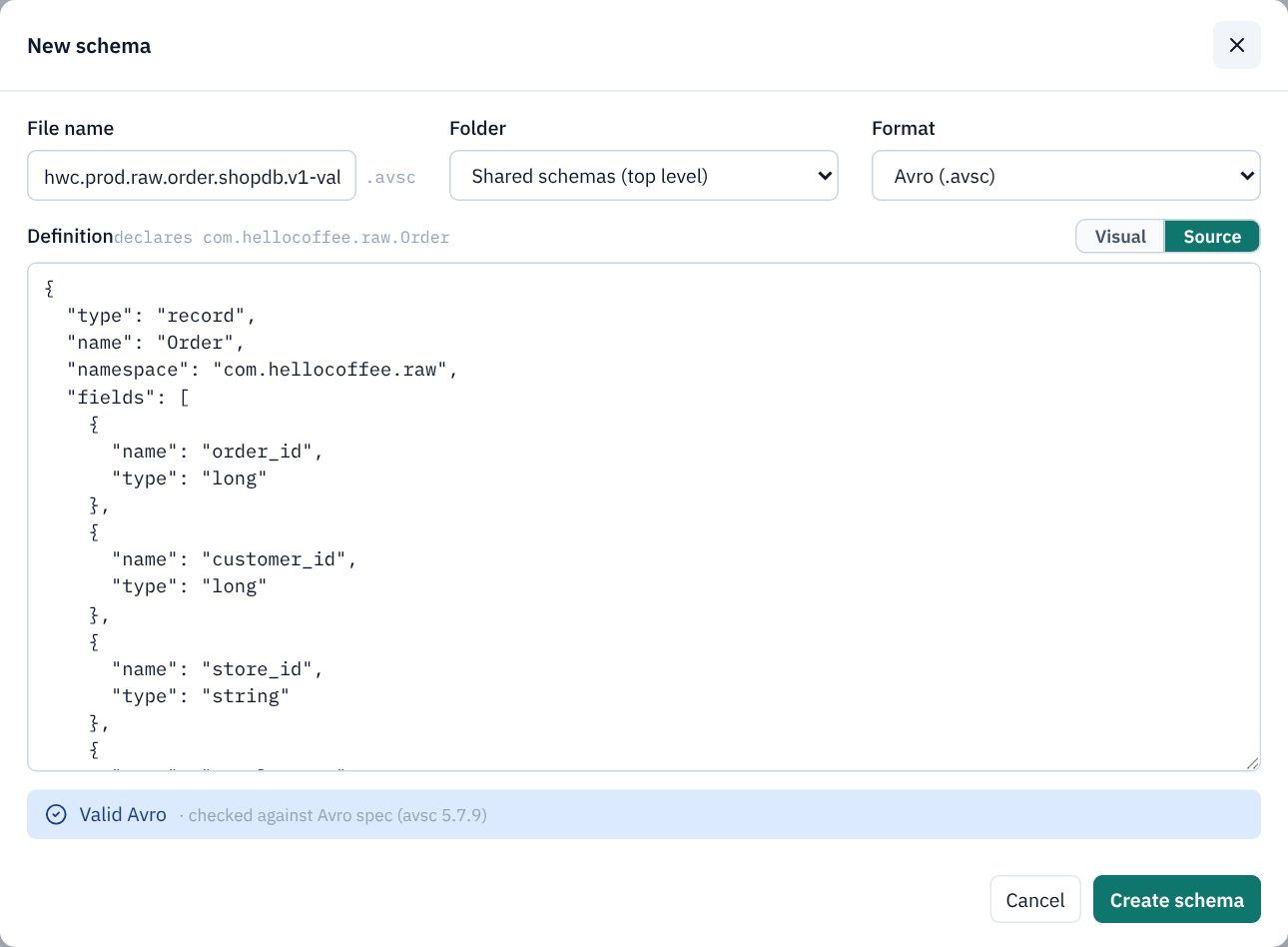
Two handy extras while you are here. Open Example message to see a sample record that matches the schema. Click Source to see the Avro JSON KPD writes for you. The blue Valid Avro bar means the schema is checked against the Avro specification as you type.
- Click Create schema.
- Repeat for the other four schemas:
File name Record / namespace Fields hwc.prod.raw.customer.shopdb.v1-valueCustomer/com.hellocoffee.rawcustomer_idlong,namestring,emailstring (tick nullable)hwc.prod.ent.order.cdm.v1-valueStoreOrder/com.hellocoffee.cdmorderIdlong,customerIdlong,customerNamestring,customerEmailstring (nullable),storeIdstring,totalPenceint,orderedAttimestamp-millishwc.prod.ent.order.history.v1-valueOrderHistory/com.hellocoffee.productorderIdlong,customerIdlong,customerNamestring,storeIdstring,totalPenceint,orderedAttimestamp-millishwc.prod.ent.order.big-orders.v1-valueBigOrder/com.hellocoffee.productorderIdlong,storeIdstring,totalPenceint,orderedAttimestamp-millis
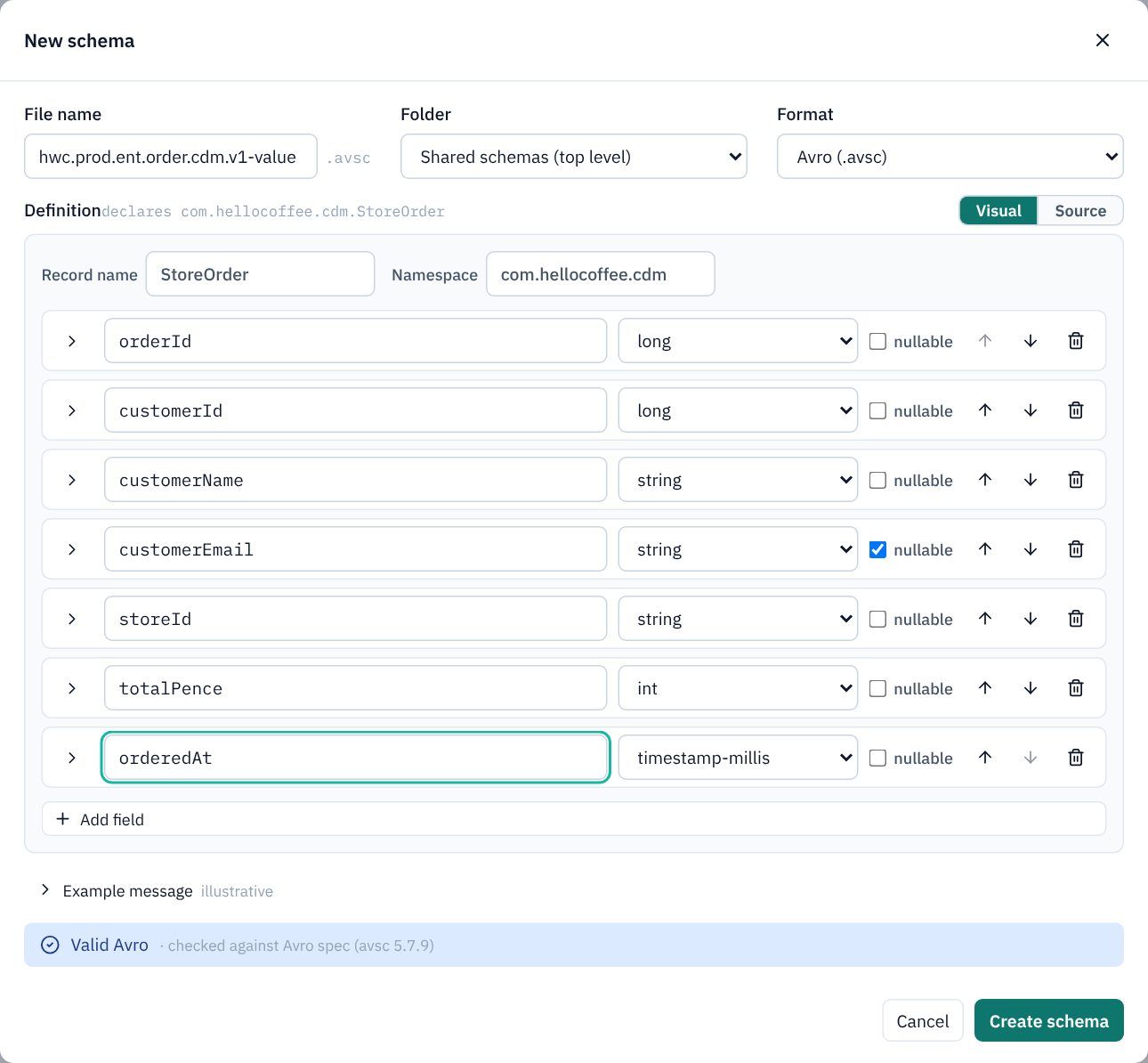
order_id), exactly as captured. The canonical layer uses the business's names (orderId) once, so every data product built on it agrees. That is the DPCF raw → canonical → product pattern.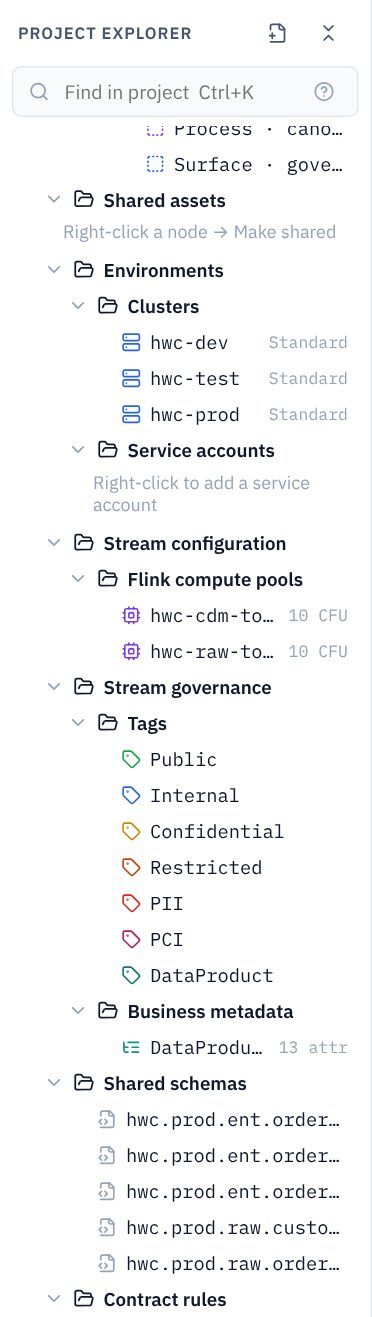
4.3 Add the CDC source
CDC (change data capture) reads the database's own change log, so every insert and update is captured once, in order, without querying the tables.
- Make sure the store-orders.kpd tab is showing. On the Start your pipeline card, click Add a source. (Start from a system would draw the shop database itself first, which is a good way into a workshop; here we go straight to the connector.)
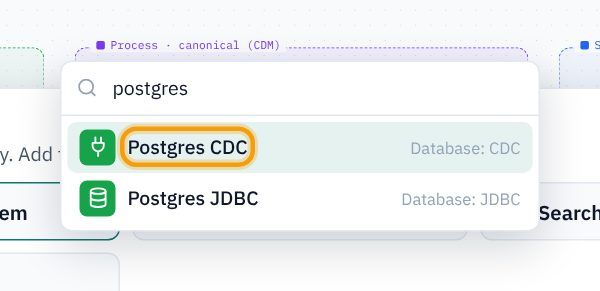
- Type
postgresand choose Postgres CDC (its full name is PostgreSQL CDC Source V2).
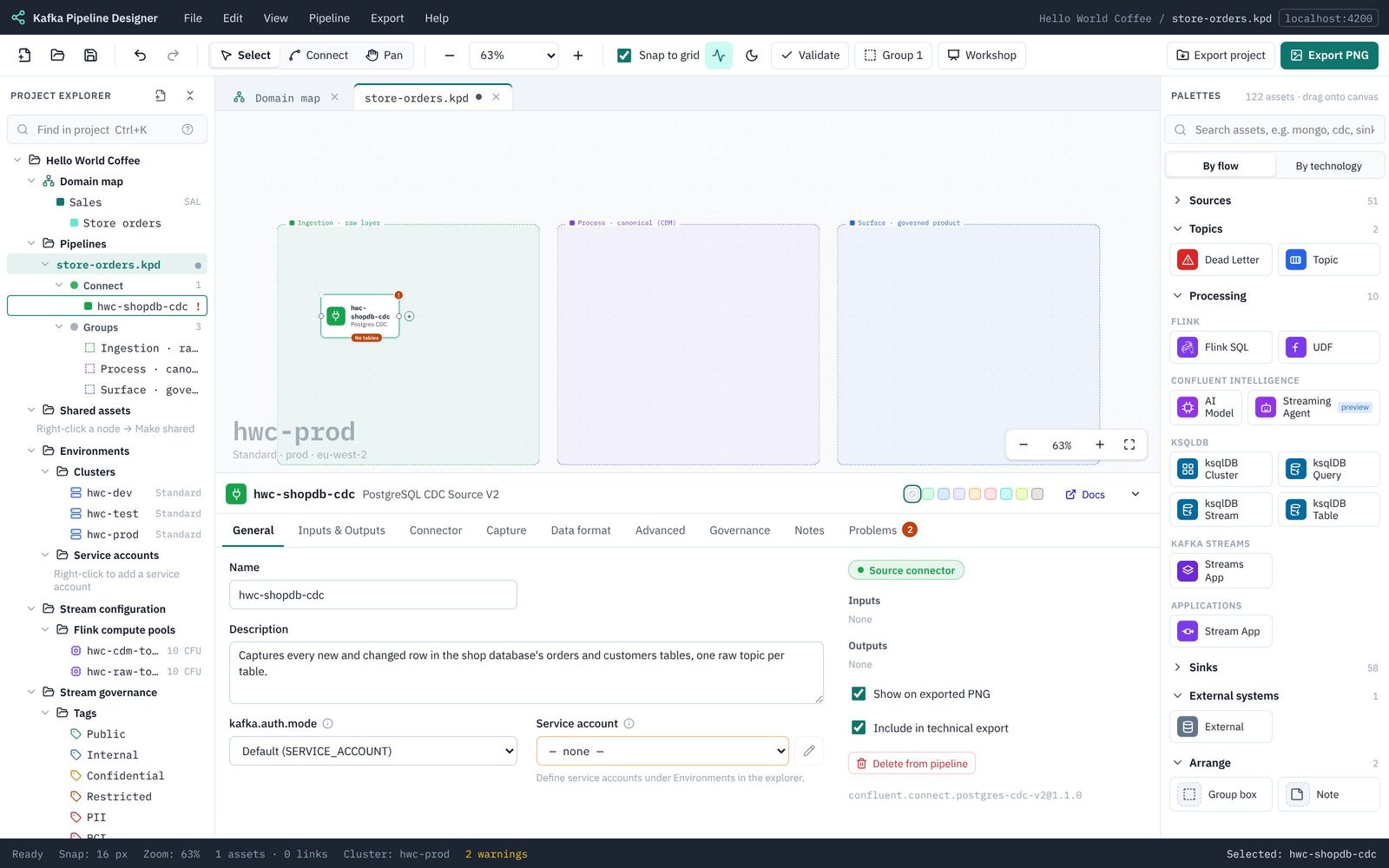
- The connector appears on the canvas. If it isn't inside the green Ingestion box, drag it there: sources belong in the ingestion layer.
- On its General tab: Name
hwc-shopdb-cdc; DescriptionCaptures every new and changed row in the shop database's orders and customers tables, one raw topic per table.(Leave Service account for Part 6.)
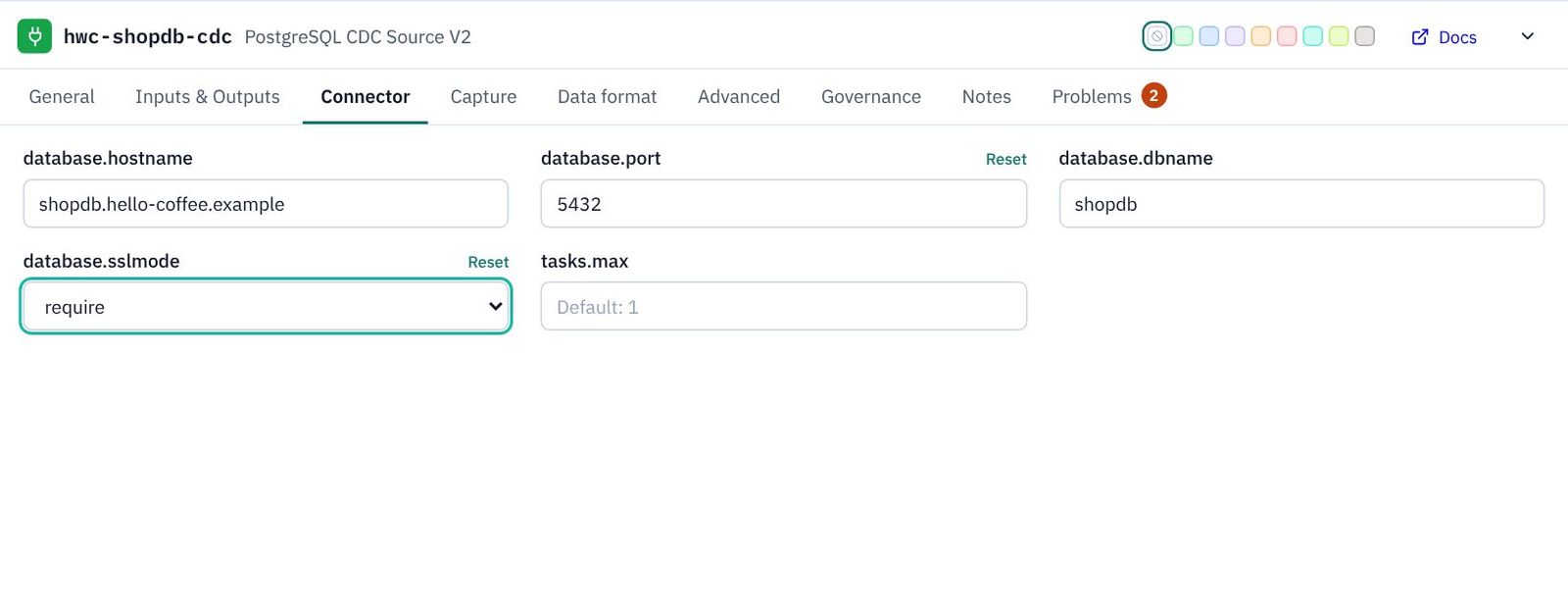
- Connector tab: database.hostname
shopdb.hello-coffee.example, database.port5432, database.dbnameshopdb, database.sslmode require. (No password: that is a secret, supplied when deploying.)
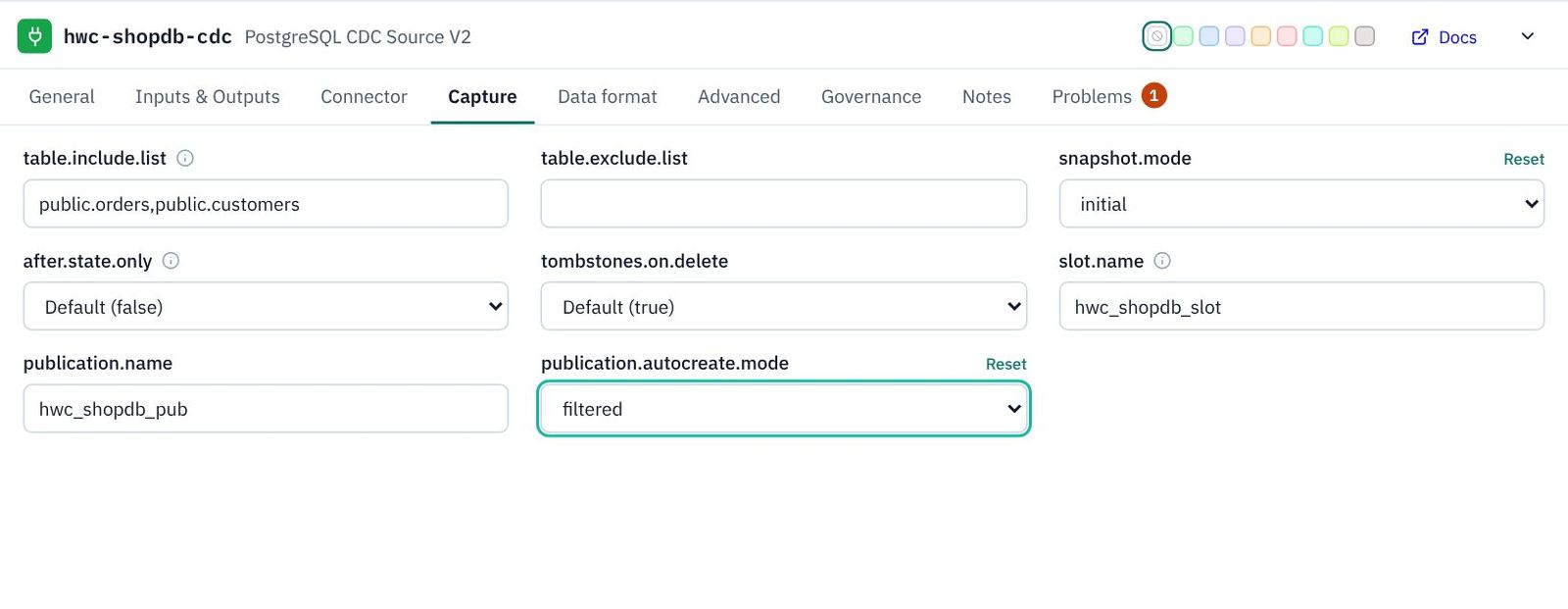
- Capture tab: table.include.list
public.orders,public.customers; snapshot.mode initial (copy the existing rows first, then stream changes); slot.namehwc_shopdb_slot; publication.namehwc_shopdb_pub; publication.autocreate.mode filtered (the publication covers just these two tables).
- Data format tab: output.data.format AVRO, output.key.format STRING, topic.prefix
hwc.prod.raw.shopdb.
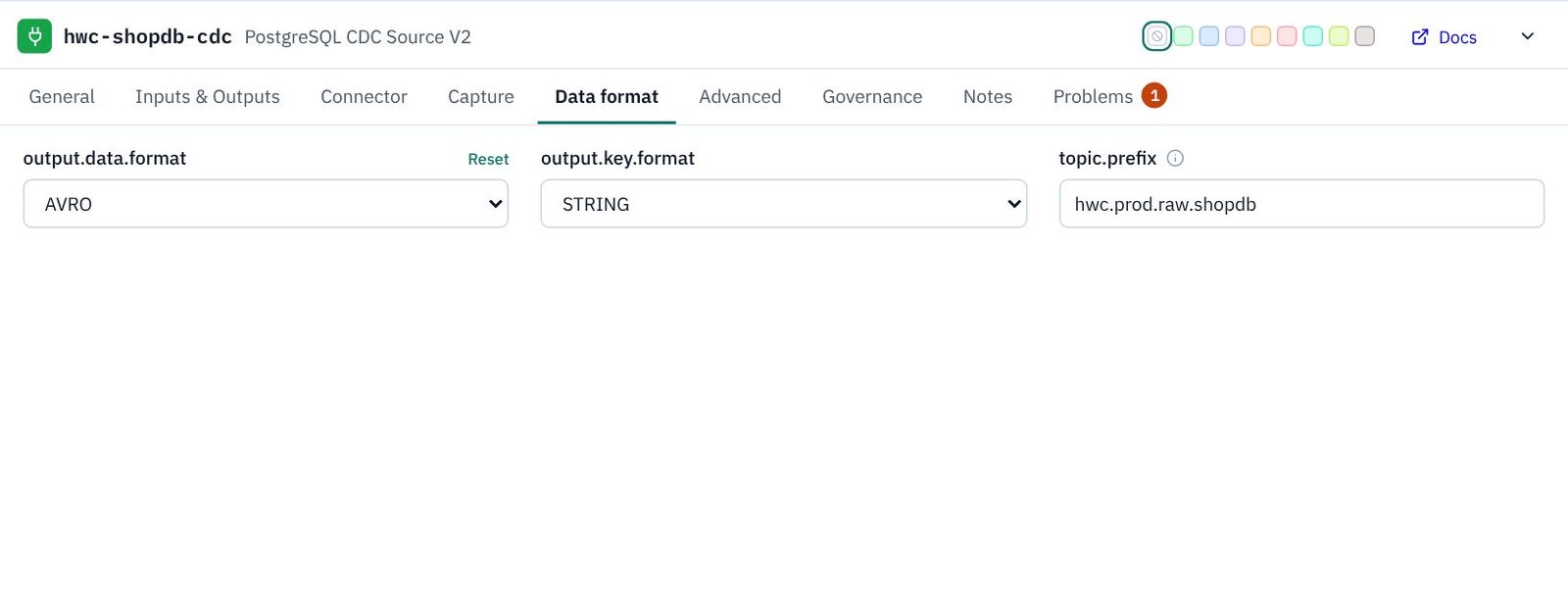
topic.prefix, then the schema and table. With our prefix, public.orders would land in hwc.prod.raw.shopdb.public.orders. KPD works these names out and checks the topics you wire against them. Our DPCF standard wants names like hwc.prod.raw.order.shopdb.v1 instead, so the next step adds a transform that renames them. (Without it, KPD would offer to Add topics with the connector's own names. See CDC sources and their topics.)- Advanced tab: in SMT chain, type
RegexRouterand press Enter. RegexRouter is the single message transform that renames each topic to our DPCF name.
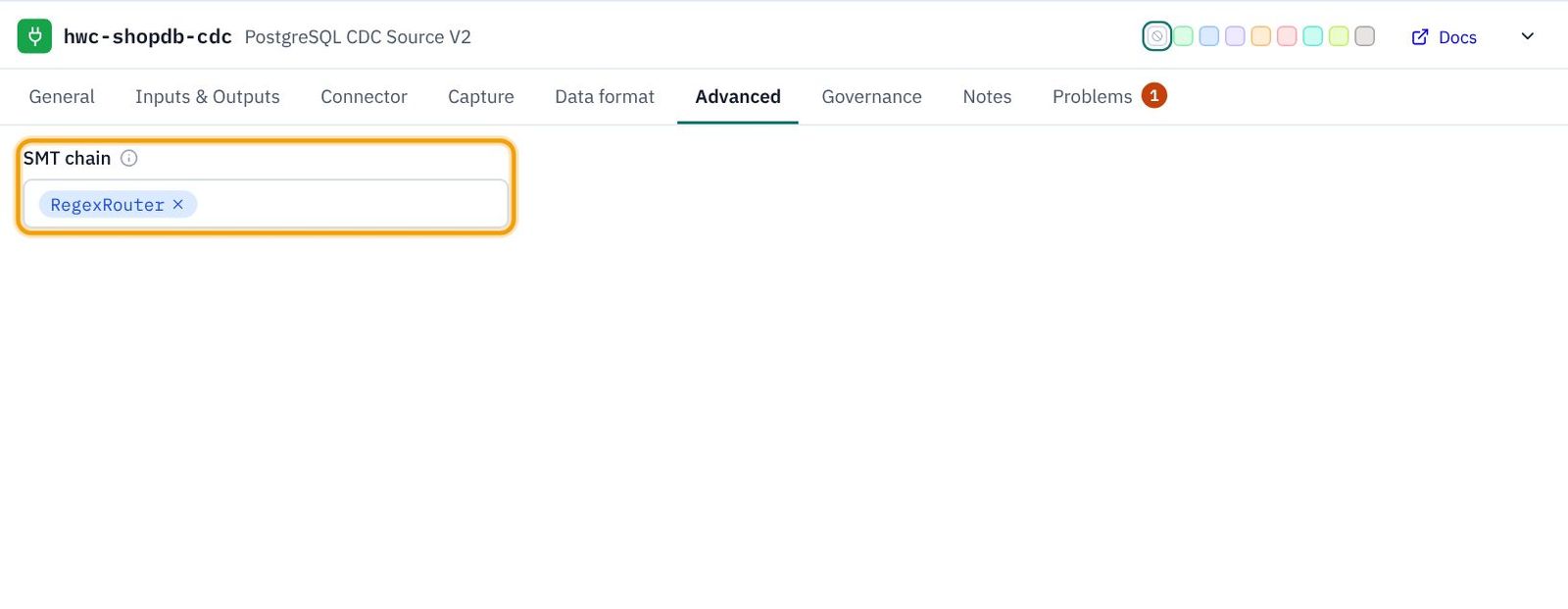
Because a transform renames the topics, KPD can't predict the names any more, so it checks only that there is one topic per captured table. (The transform's own settings, the pattern and the replacement, are added to the Terraform by hand.)
4.4 Add the two raw topics
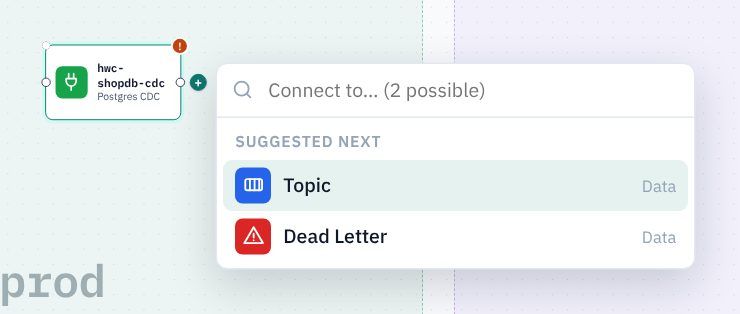
- With the connector selected, click the + on its right-hand edge (its Records output).
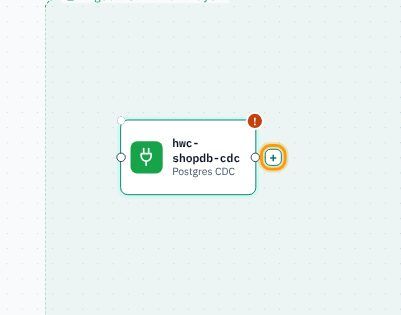
- Choose Topic. A topic appears, already connected.
- On the topic's General tab: Name
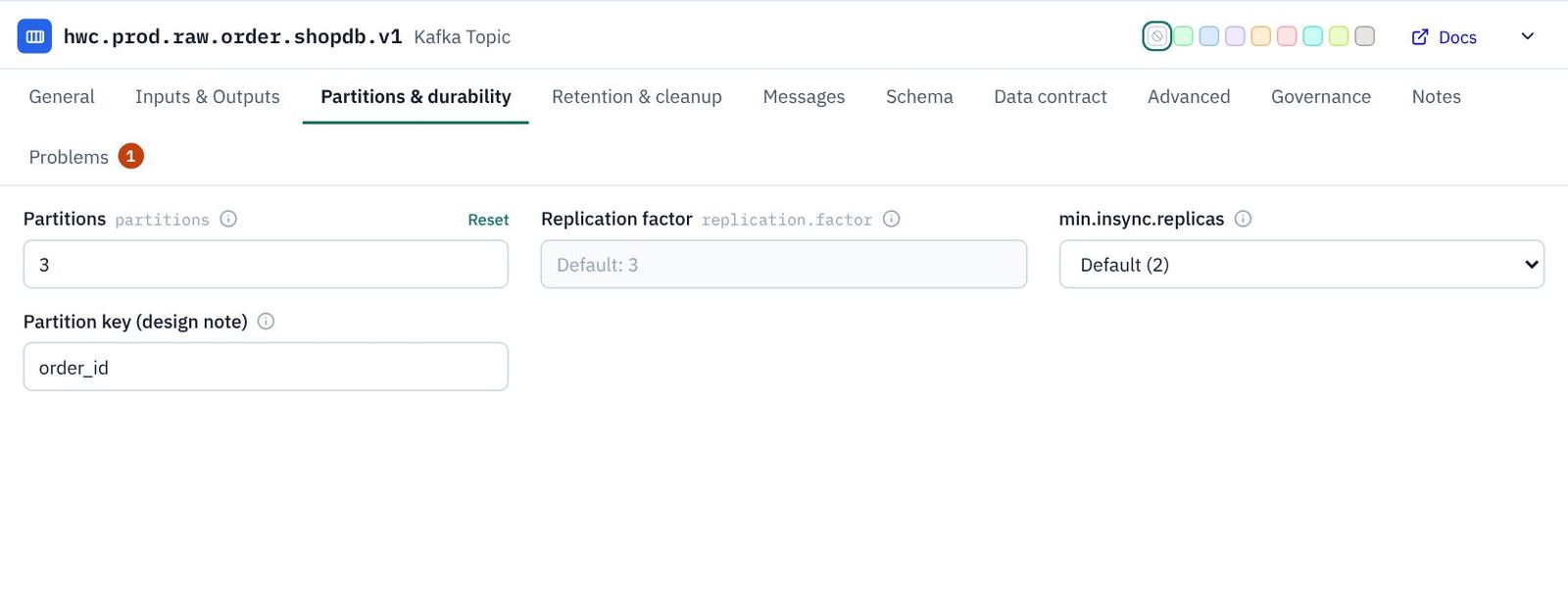
hwc.prod.raw.order.shopdb.v1; DescriptionEvery order row from shopdb (public.orders), as captured. Raw: never published. - Partitions & durability tab: Partitions
3; Partition keyorder_id(a design note: which field keeps one order's changes in order).
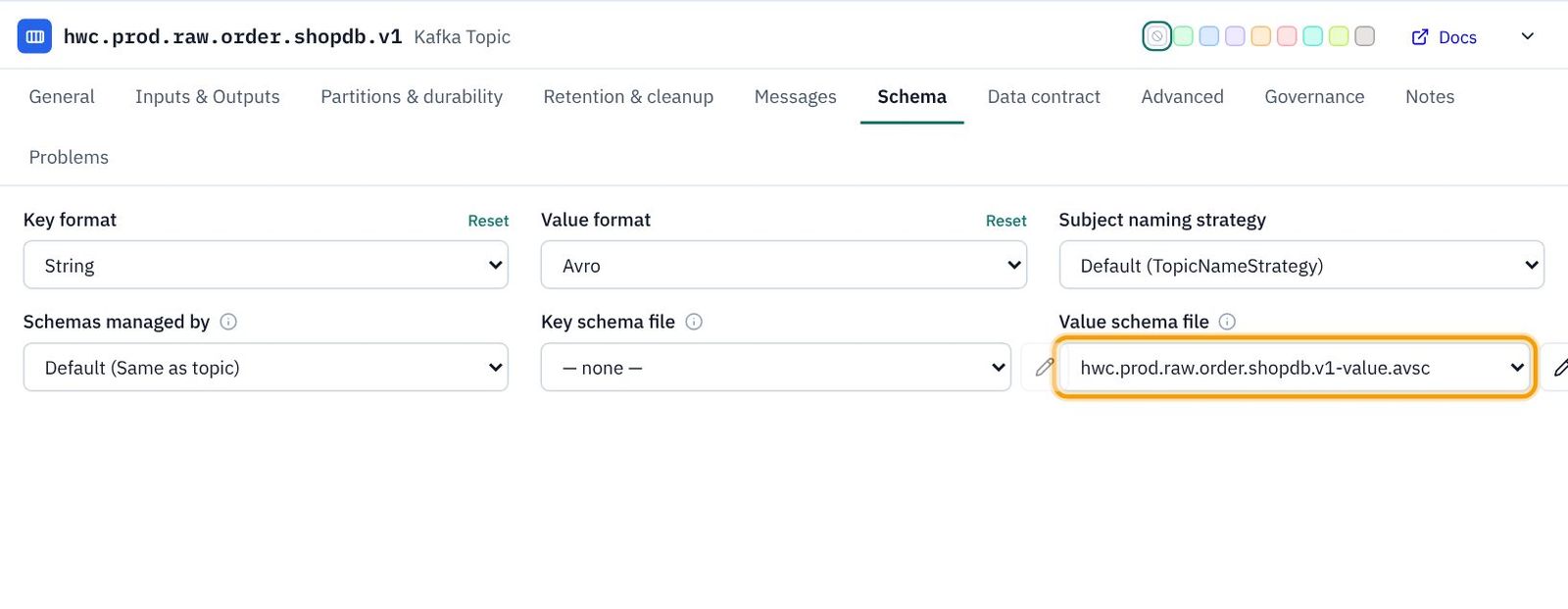
- Schema tab: Key format String; Value schema file
hwc.prod.raw.order.shopdb.v1-value.avsc.
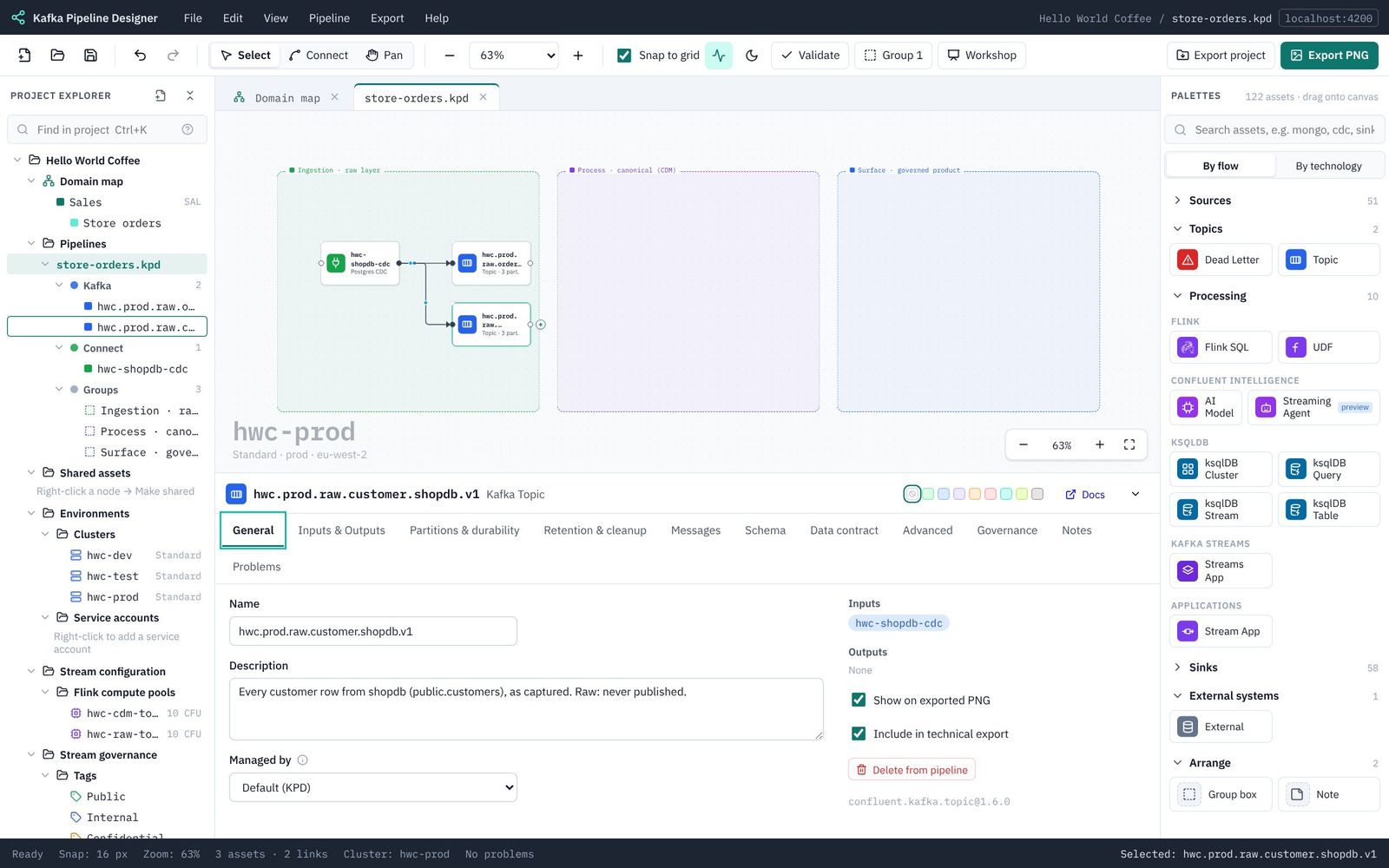
- Select the connector again, click its + again and add a second Topic: name
hwc.prod.raw.customer.shopdb.v1, descriptionEvery customer row from shopdb (public.customers), as captured. Raw: never published., 3 partitions, partition keycustomer_id, key format String, value schemahwc.prod.raw.customer.shopdb.v1-value.avsc.
4.5 Join orders to customers in Flink
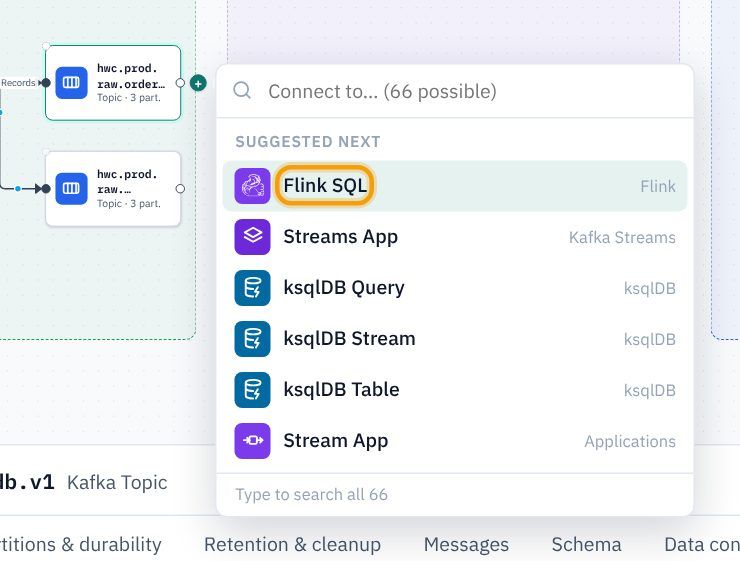
- Select the order raw topic and click its +. Choose Flink SQL. The statement is placed in the purple Process box.
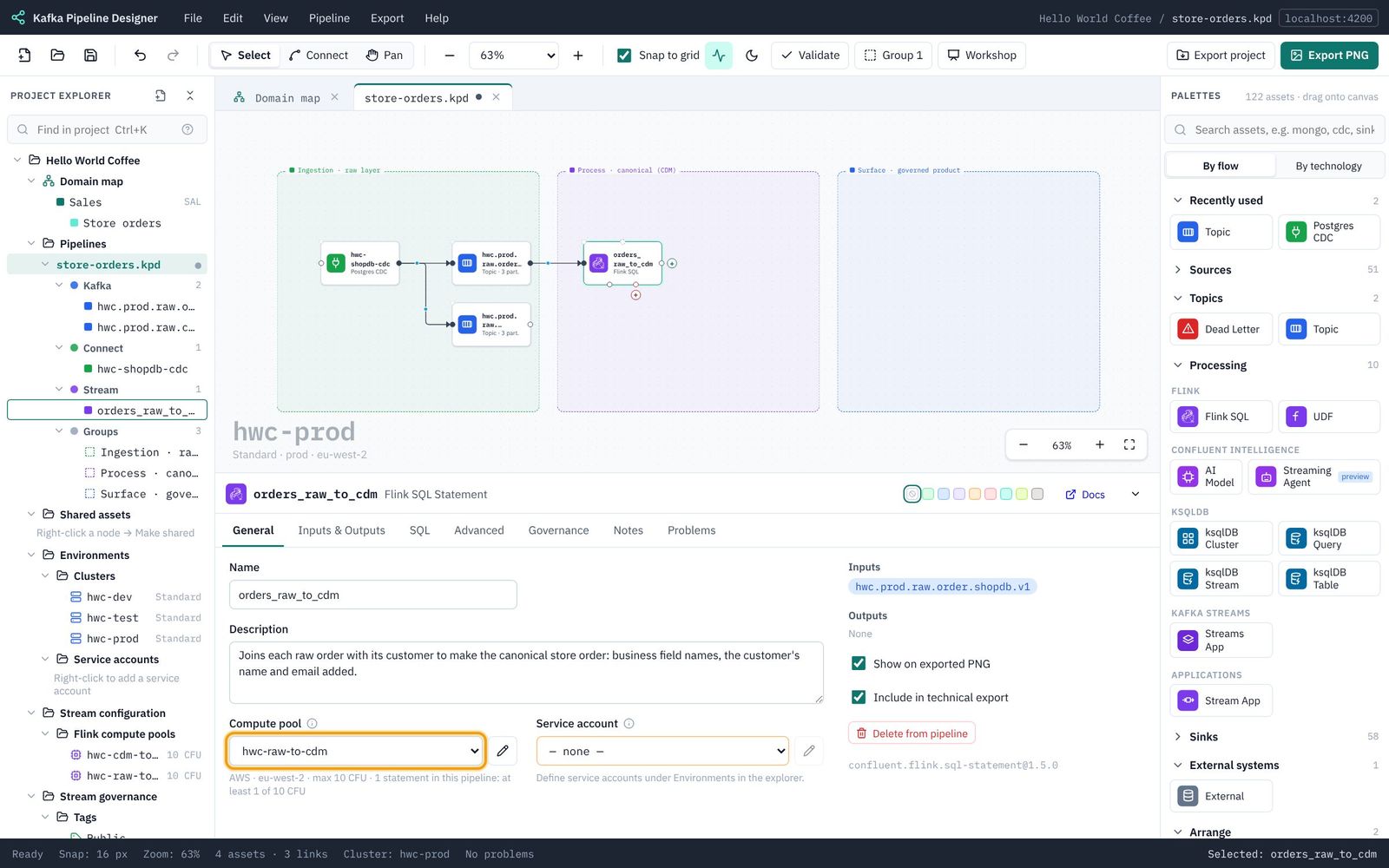
- On the statement's General tab: Name
orders_raw_to_cdm; DescriptionJoins each raw order with its customer to make the canonical store order: business field names, the customer's name and email added.; Compute pool hwc-raw-to-cdm.
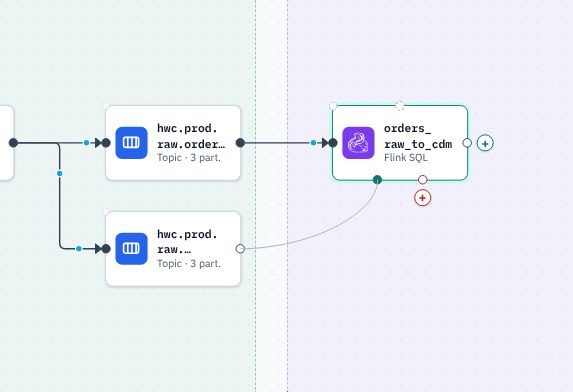
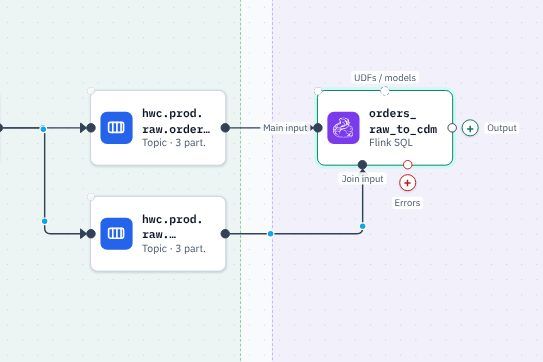
- Now wire the customer topic in as the join. A Flink statement has a Main input on its left and a Join input on its bottom edge. Drag from the customer topic's right-hand dot (its output) to the dot on the bottom of the statement. A line follows the mouse while you drag.
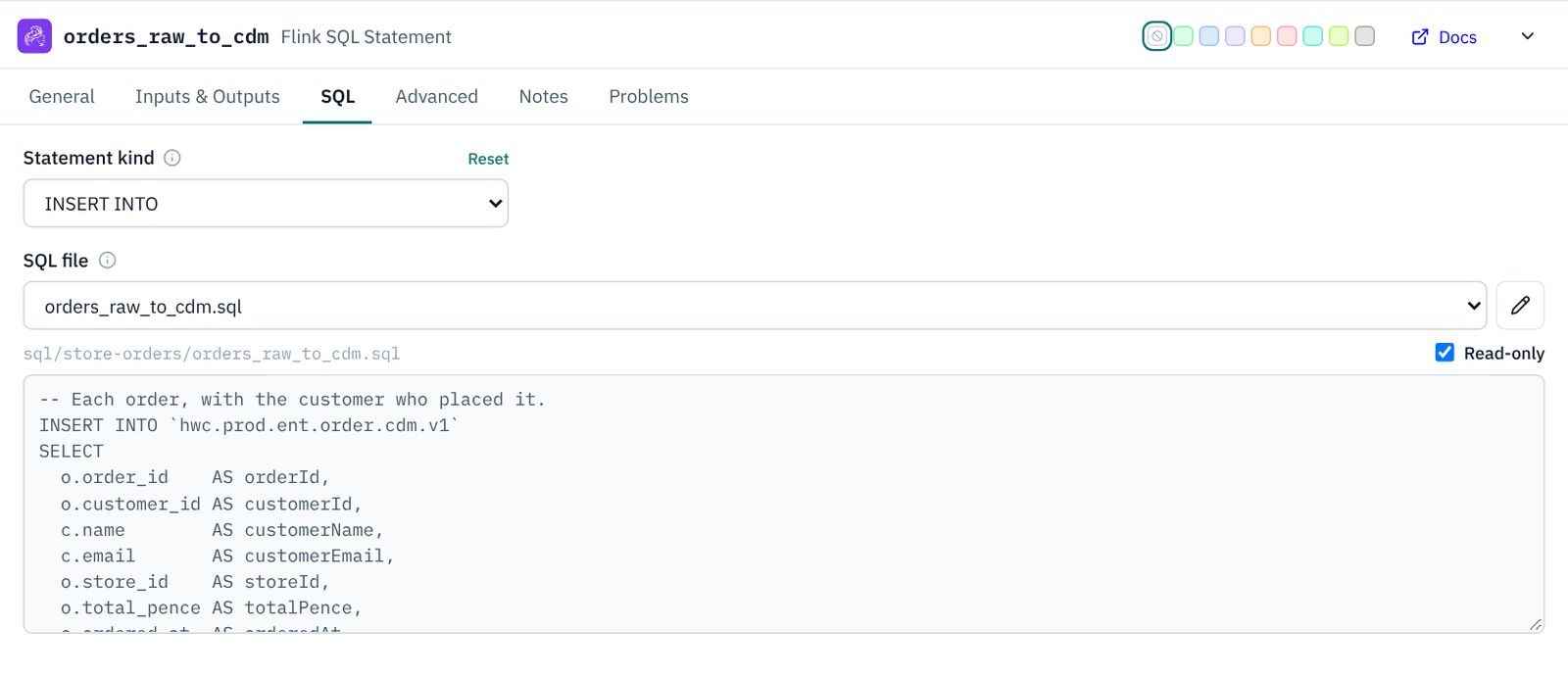
- SQL tab: Statement kind INSERT INTO. Keep the SQL in a file of its own, so it can be reviewed like any other code: under SQL file choose + New SQL file…. The dialog suggests the name
orders_raw_to_cdmin a newstore-ordersfolder; keep both, replace the starter text with this, and click Create SQL file:
The SQL tab now shows the file, Read-only so it isn’t changed by accident. To change it later, untick Read-only and edit it there, or open it from Stream configuration → SQL in the explorer.-- Each order, with the customer who placed it. INSERT INTO `hwc.prod.ent.order.cdm.v1` SELECT o.order_id AS orderId, o.customer_id AS customerId, c.name AS customerName, c.email AS customerEmail, o.store_id AS storeId, o.total_pence AS totalPence, o.ordered_at AS orderedAt FROM `hwc.prod.raw.order.shopdb.v1` AS o JOIN `hwc.prod.raw.customer.shopdb.v1` AS c ON o.customer_id = c.customer_id;
4.6 Add the canonical topic
- Select
orders_raw_to_cdm, click the + on its Output and choose Topic. - Name
hwc.prod.ent.order.cdm.v1; DescriptionCanonical store orders: every order with its customer, in business field names. The single source for the data products.; 3 partitions, partition keyorderId; key format String; value schemahwc.prod.ent.order.cdm.v1-value.avsc.
4.7 Add the two data products
Each data product is a Flink statement that reads the canonical topic and writes its own topic, in the blue Surface box.
- Select the canonical topic, click its + and choose Flink SQL. Name it
order_history_product, descriptionData product DP-001: every order with who placed it, for the app's order history., compute pool hwc-cdm-to-surface. On SQL, choose + New SQL file… as before, keep the suggested name, and create it with:-- DP-001: each customer's orders, without their email. INSERT INTO `hwc.prod.ent.order.history.v1` SELECT orderId, customerId, customerName, storeId, totalPence, orderedAt FROM `hwc.prod.ent.order.cdm.v1`; - Select
order_history_product, click the + on its Output, choose Topic: namehwc.prod.ent.order.history.v1, descriptionDP-001 Customer order history: every store order with the customer who placed it., 3 partitions keyed byorderId, key String, value schemahwc.prod.ent.order.history.v1-value.avsc. - Select the canonical topic again and add a second Flink SQL:
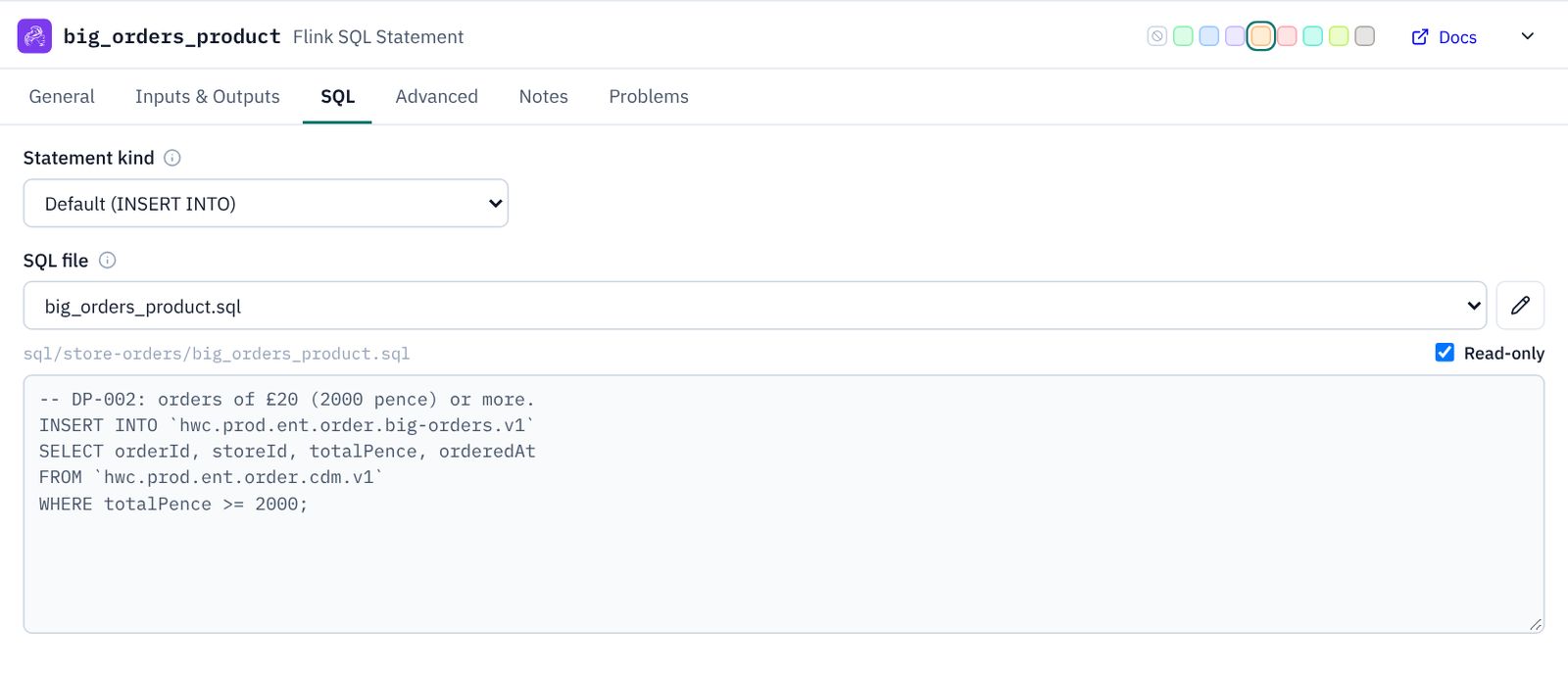
big_orders_product, descriptionData product DP-002: orders of £20 or more, for store managers., pool hwc-cdm-to-surface, and a + New SQL file… with:-- DP-002: orders of £20 (2000 pence) or more. INSERT INTO `hwc.prod.ent.order.big-orders.v1` SELECT orderId, storeId, totalPence, orderedAt FROM `hwc.prod.ent.order.cdm.v1` WHERE totalPence >= 2000; - Give it an output Topic:
hwc.prod.ent.order.big-orders.v1, descriptionDP-002 Big orders: orders of £20 or more, as they happen., 3 partitions keyed byorderId, key String, value schemahwc.prod.ent.order.big-orders.v1-value.avsc.
Save. Next: 5. Governance: tags and the catalogue.