9. Notes, decisions, actions, groups and shading
Record why the design is the way it is, and make the diagram easy to read.
Part 9 of 10 in the Hello World tutorial · Follow this part in the guided wizard · Printable version
Your browser blocked the wizard window. How to allow it, or open the wizard in a new tab.
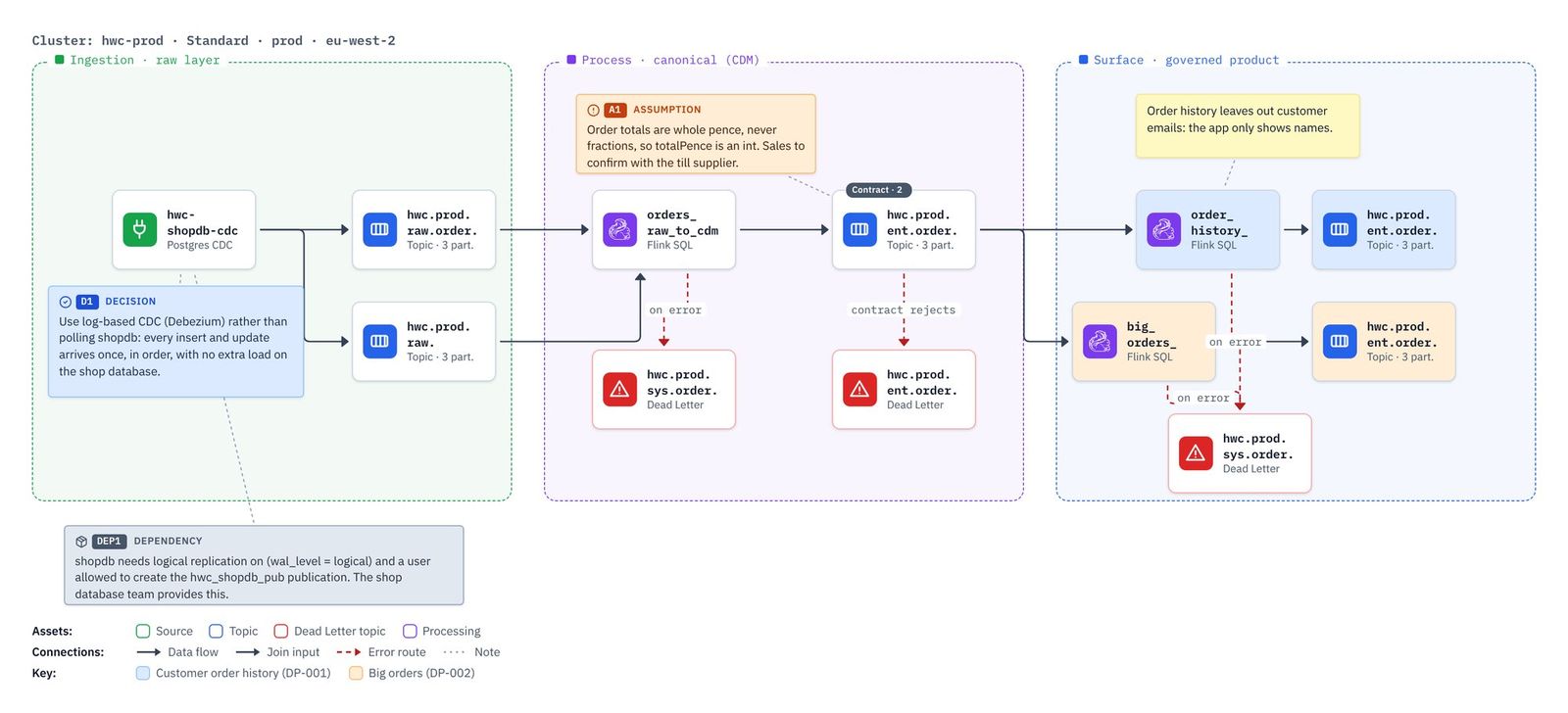
A design is more than its assets. This part records why it is the way it is (decisions), what it takes on trust (assumptions), what must be in place first (dependencies), what is still to do (actions), and makes the diagram read well with groups and shading. None of it changes validation or Terraform; all of it appears in the exports.
Why record decisions, assumptions and dependencies?
A diagram shows what the design is. It doesn't show why it is that way, what it takes on trust, or what has to happen first. Those live in people's heads and in meeting notes, and they get lost: the person who chose CDC moves on, someone asks "why didn't we just poll the table?", and the team spends an afternoon working it out again. KPD keeps them on the canvas, beside the assets they are about, numbered so a document or a ticket can point at them.
| Record a… | When | Why it helps | In this tutorial |
|---|---|---|---|
| Design decision (D1, D2…) | You chose between real options: CDC or polling, one topic or two, which key to partition by, Avro or JSON. | Says what was chosen and why, so it isn't argued again, a reviewer can check the reasoning, and a newcomer understands the design. If the reason stops being true, you know which decision to revisit. | D1: log-based CDC rather than polling. |
| Assumption (A1, A2…) | The design relies on something you believe but haven't confirmed: a field is never empty, totals are in pence, volumes stay small. | Assumptions are risks. Writing them down makes them visible, names who should confirm them, and lets a review ask "has A1 been checked?" before go-live. When one turns out wrong, you can see exactly which assets it touches. | A1: totals are whole pence, so totalPence is an int. |
| Dependency / pre-requisite (DEP1…) | Something outside your pipeline has to be in place first, usually provided by another team: a database setting, network access, an account, a schema from upstream. | These are what delay go-lives. Listing them early lets a project plan include them and the team that owns them hear about them in good time. | DEP1: logical replication and a publication on shopdb. |
| Next action (ACN1…) | Someone has to do something: confirm an assumption, arrange a dependency, chase an answer. | Turns open questions into a to-do list with a date and a name, so nothing is forgotten between workshops. | ACN1 arranges DEP1; ACN2 confirms the big-order threshold. |
They work together: an assumption or a dependency usually leads to an action, and once the action is done, the assumption may become a decision. Linking each note to its asset (below) means the technical export quotes it under that asset, and the detailed design document lists them all in its section 13 with dates and authors, ready for a design review.
Say who you are
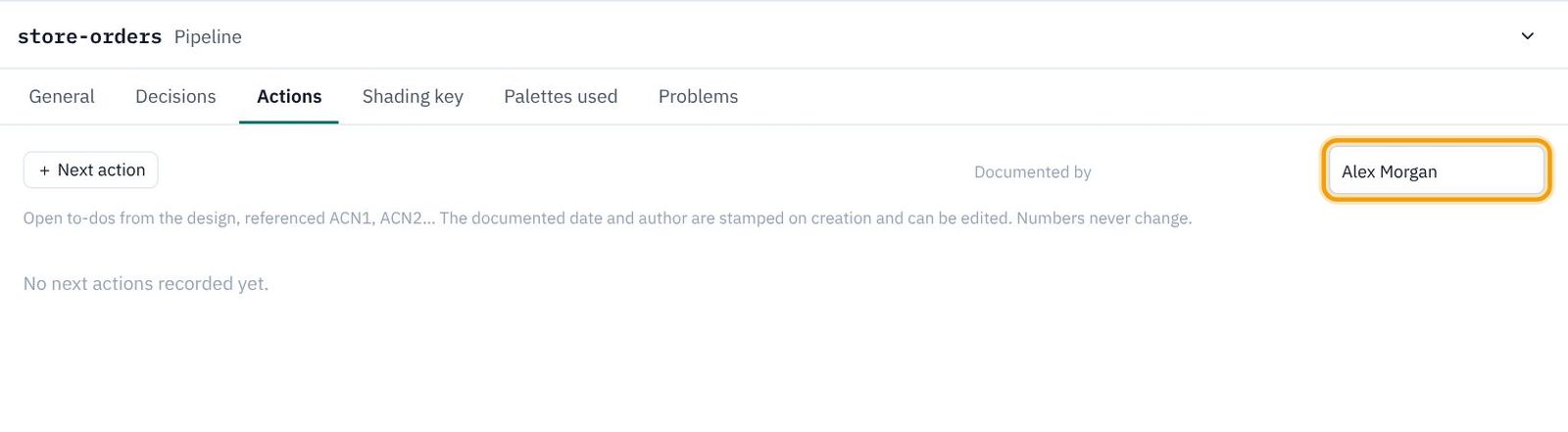
KPD stamps each decision, assumption, dependency and action with the date and an author. There is no login, so set your name once.
- Click an empty part of the canvas and open the pipeline's Actions tab (the same box is on Decisions).
- In Documented by, type your name (we used
Alex Morgan). Your browser remembers it.
A design decision
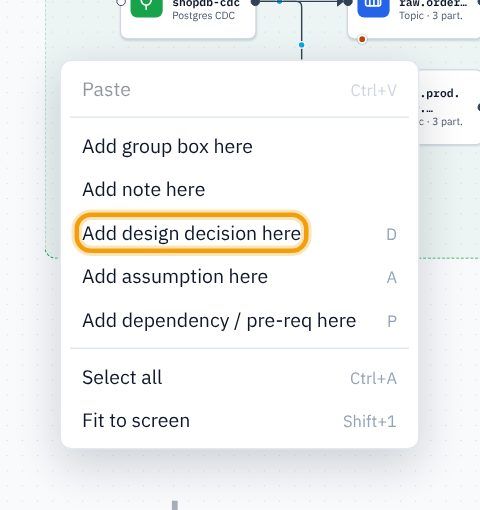
- Right-click an empty part of the canvas, inside the Ingestion box under the connector, and choose Add design decision here. (Or press D with the mouse over the canvas.)
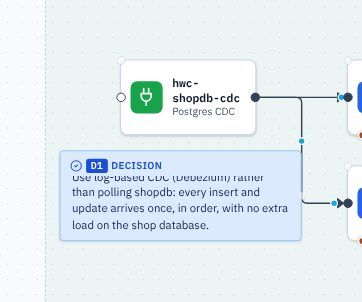
- A blue note appears, numbered D1, ready for typing. Type
Use log-based CDC (Debezium) rather than polling shopdb: every insert and update arrives once, in order, with no extra load on the shop database.and press Esc (or click away) to finish.
An assumption, a dependency and a plain note
Add three more the same way (right-click the canvas, or press the key):
| Kind | Key | Where | Text |
|---|---|---|---|
| Assumption A1 (orange) | A | Top of the Process box | Order totals are whole pence, never fractions, so totalPence is an int. Sales to confirm with the till supplier. |
| Dependency DEP1 (slate) | P | Under the Ingestion box | shopdb needs logical replication on (wal_level = logical) and a user allowed to create the hwc_shopdb_pub publication. The shop database team provides this. |
| Plain note (yellow) | N | Top of the Surface box | Order history leaves out customer emails: the app only shows names. |
Link notes to the assets they are about
- Every note has a connector dot on its right edge, and every asset has a small grey Notes dot at its top-left corner (both outlined below). Drag from the note's dot to the asset's dot.
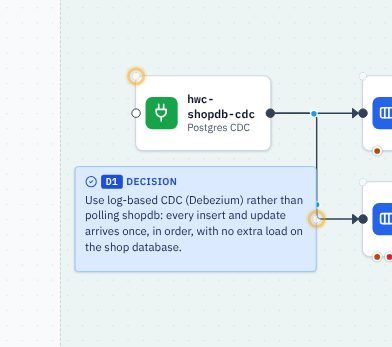
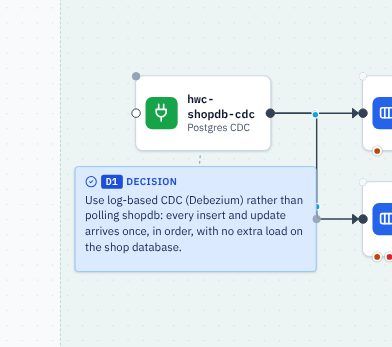
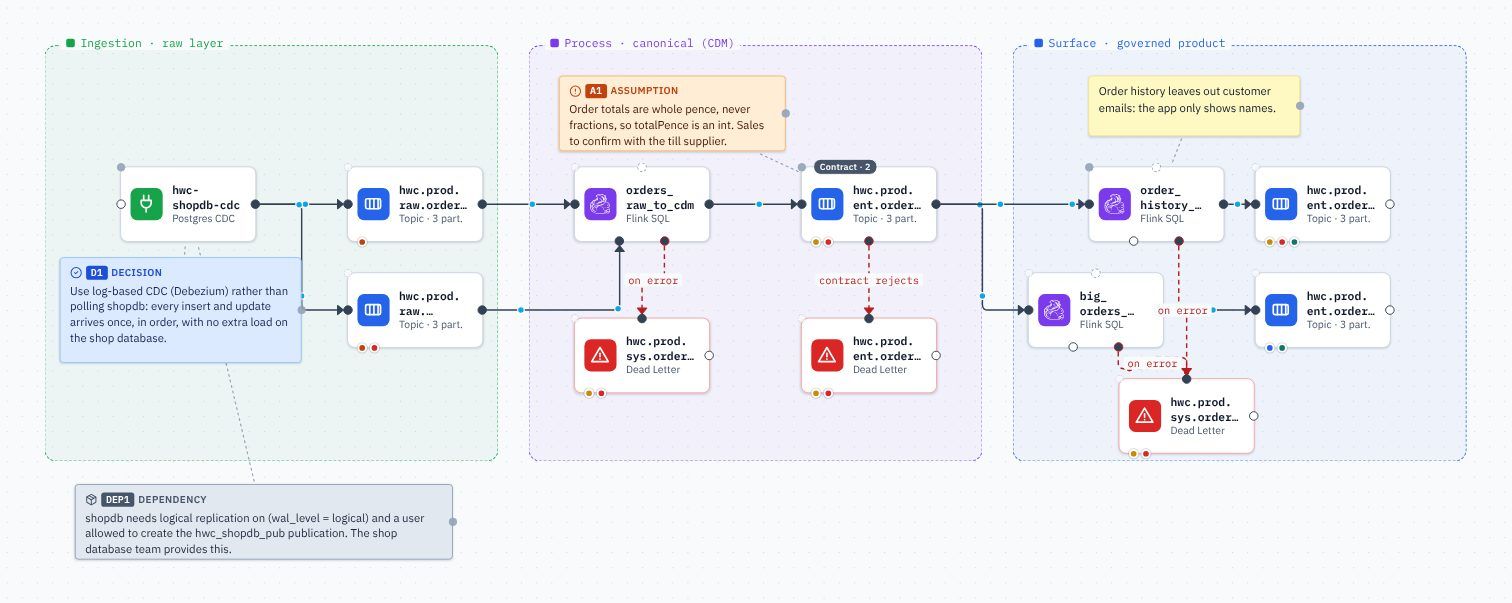
- Link DEP1 to the connector too, A1 to the canonical topic
hwc.prod.ent.order.cdm.v1, and the plain note toorder_history_product.
The decision log and next actions
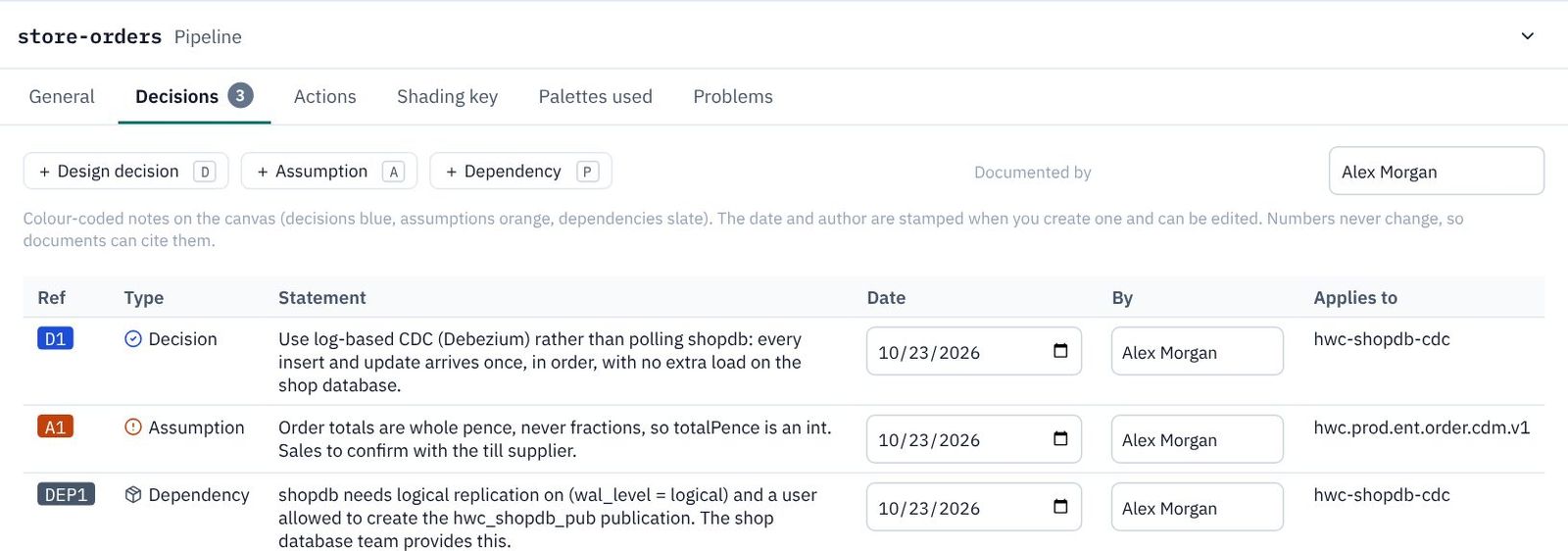
- Click an empty part of the canvas and open the pipeline's Decisions tab. It lists every decision, assumption and dependency with its date, author and the assets it applies to. Click a row to jump to the note on the canvas. Dates and authors can be corrected here.
- Open Actions and click + Next action.
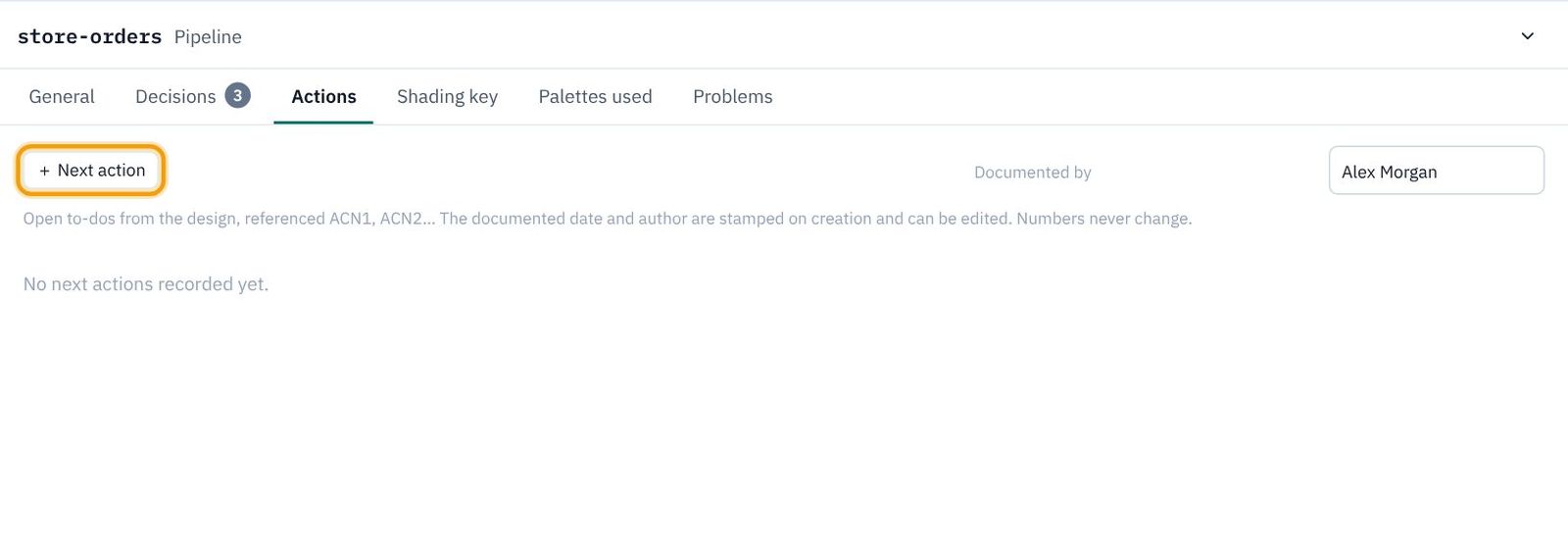
- Type
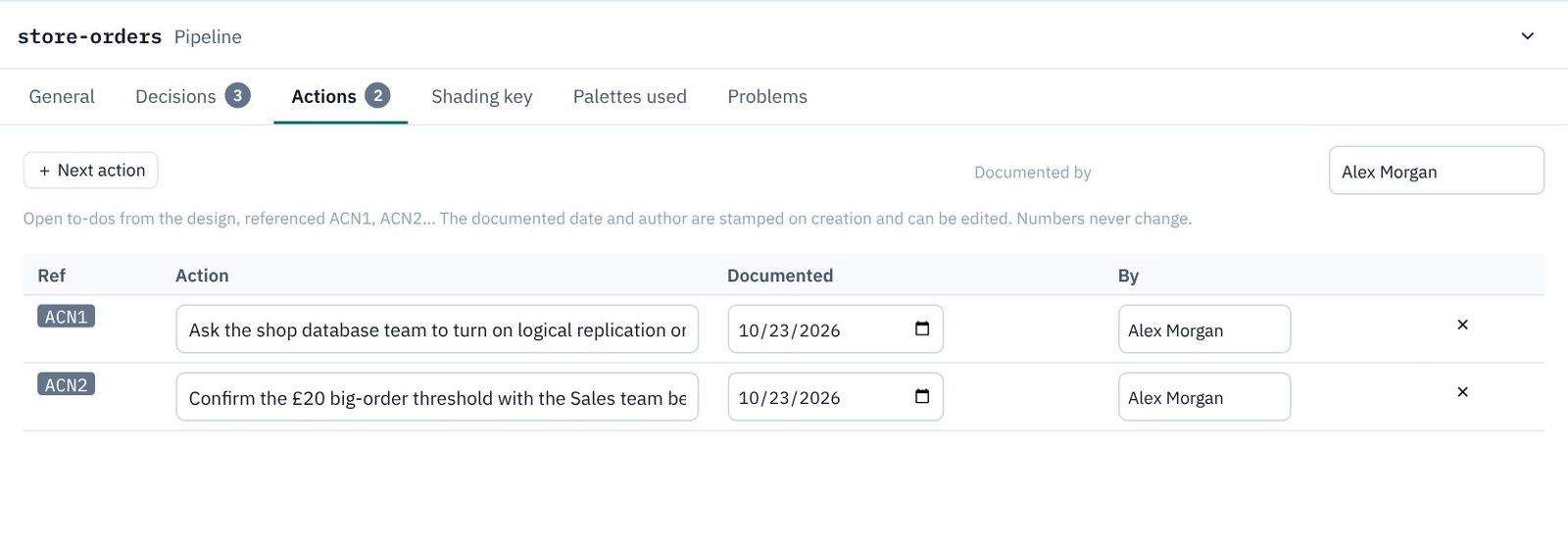
Ask the shop database team to turn on logical replication on shopdb and create the hwc_shopdb_pub publication (see DEP1).It becomes ACN1. - Add a second:
Confirm the £20 big-order threshold with the Sales team before the first release.(ACN2).
Groups
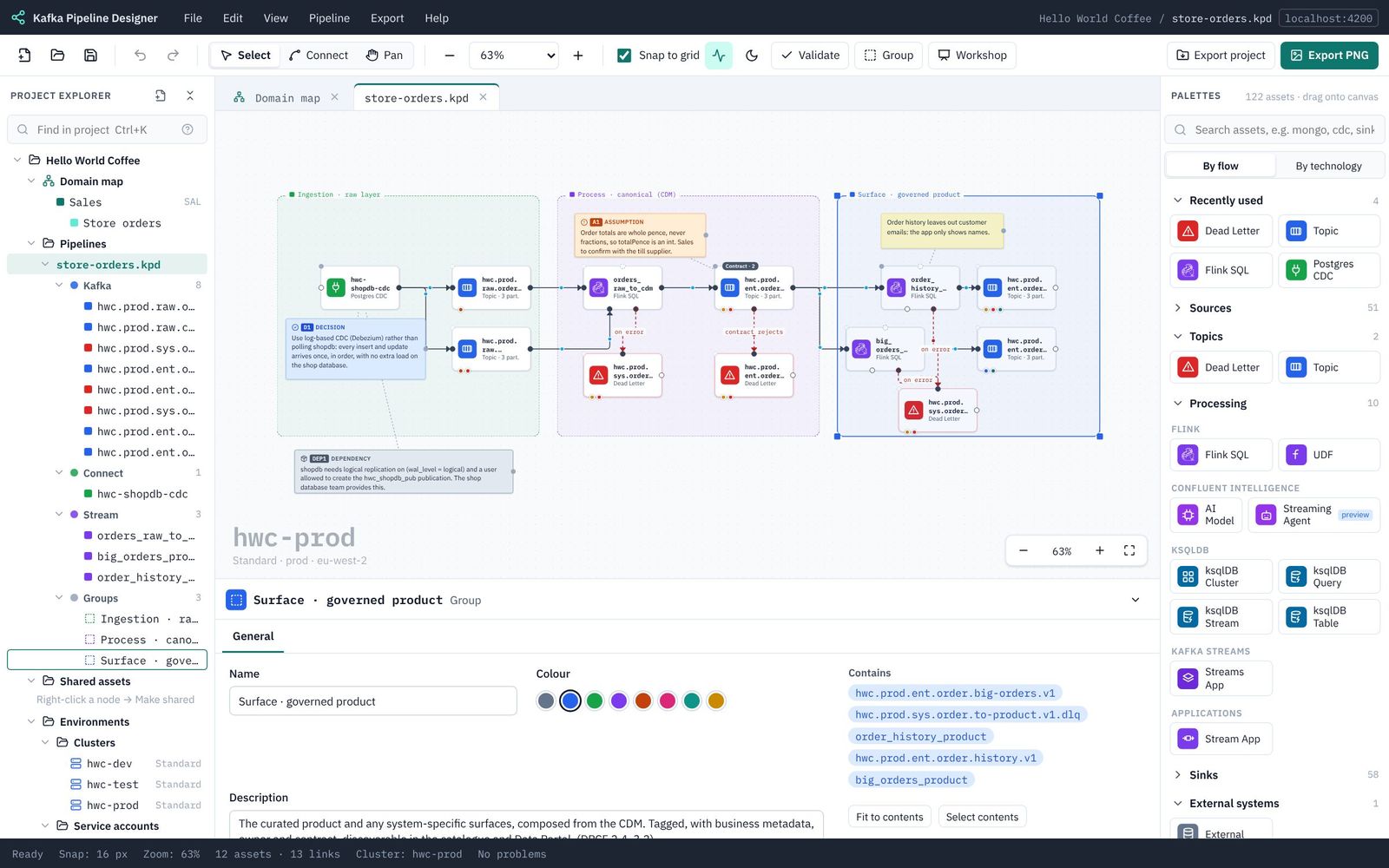
The three layer boxes are groups: labelled backgrounds for parts of a solution. The DPCF template drew them for you.
- To make your own, select some assets (drag a box around them, or Shift+click) and click Group in the toolbar (or Ctrl/⌘+G). KPD sizes a box around them.
- Click a group's label to select it. Its properties: Name, Colour, Description and what it Contains. Fit to contents resizes it around its assets.
- Drag the label or border to move just the box; drag its square corner handles to resize it.
Shading by data product
Shading gives assets a pale background to show what belongs together. Here, one shade per data product.
- Click
order_history_product. In the properties panel's header, click the pale blue swatch, Sky.

- Shade the topic
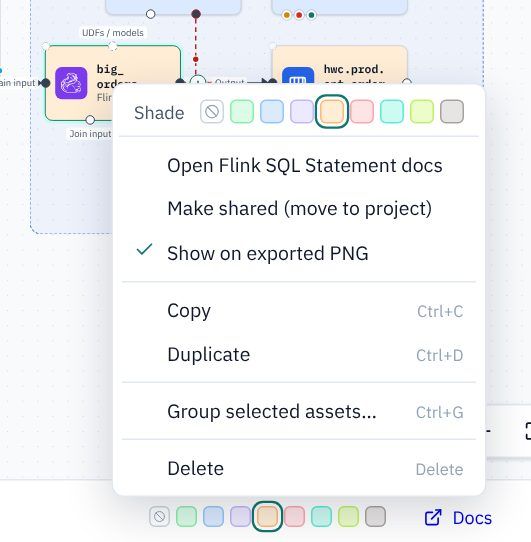
hwc.prod.ent.order.history.v1Sky too, and givebig_orders_productandhwc.prod.ent.order.big-orders.v1the pale orange, Peach. - You can also right-click an asset (or several selected together): the menu starts with the same swatches.
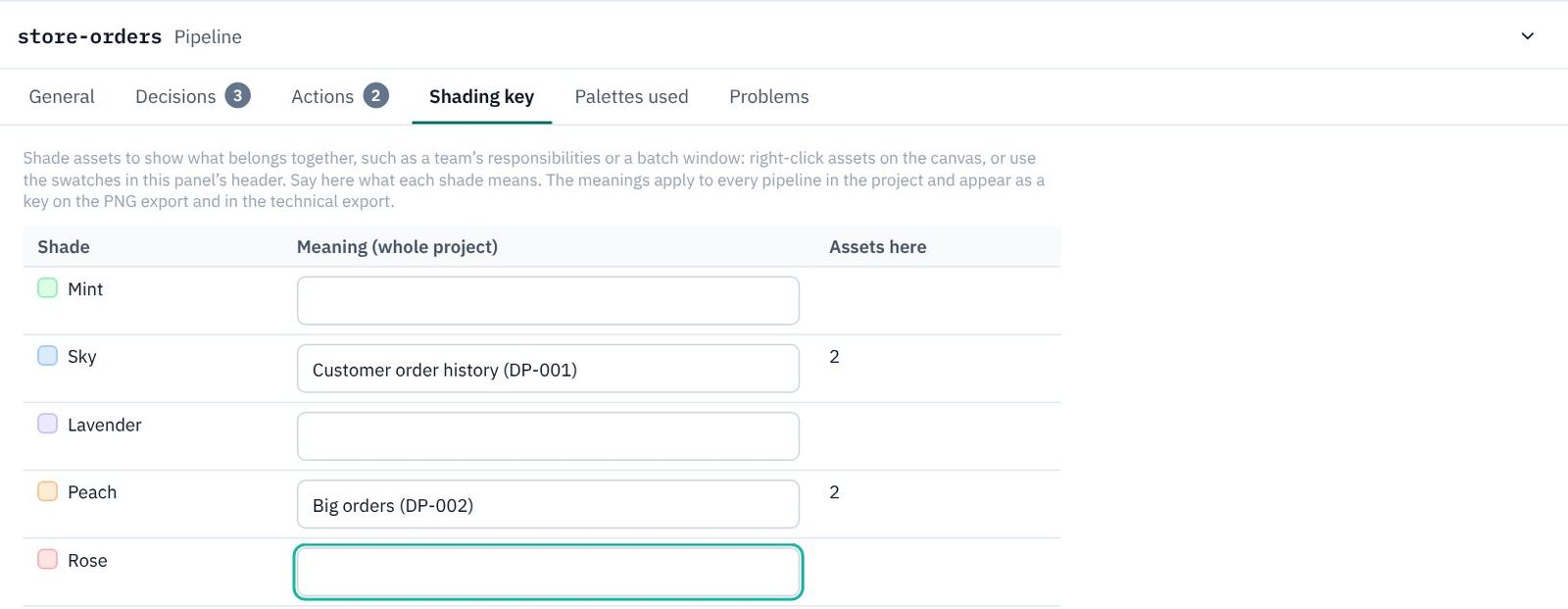
- Say what the shades mean: click an empty part of the canvas, open Shading key, and type
Customer order history (DP-001)beside Sky andBig orders (DP-002)beside Peach. Press Tab or Enter after each to save it.
Finished
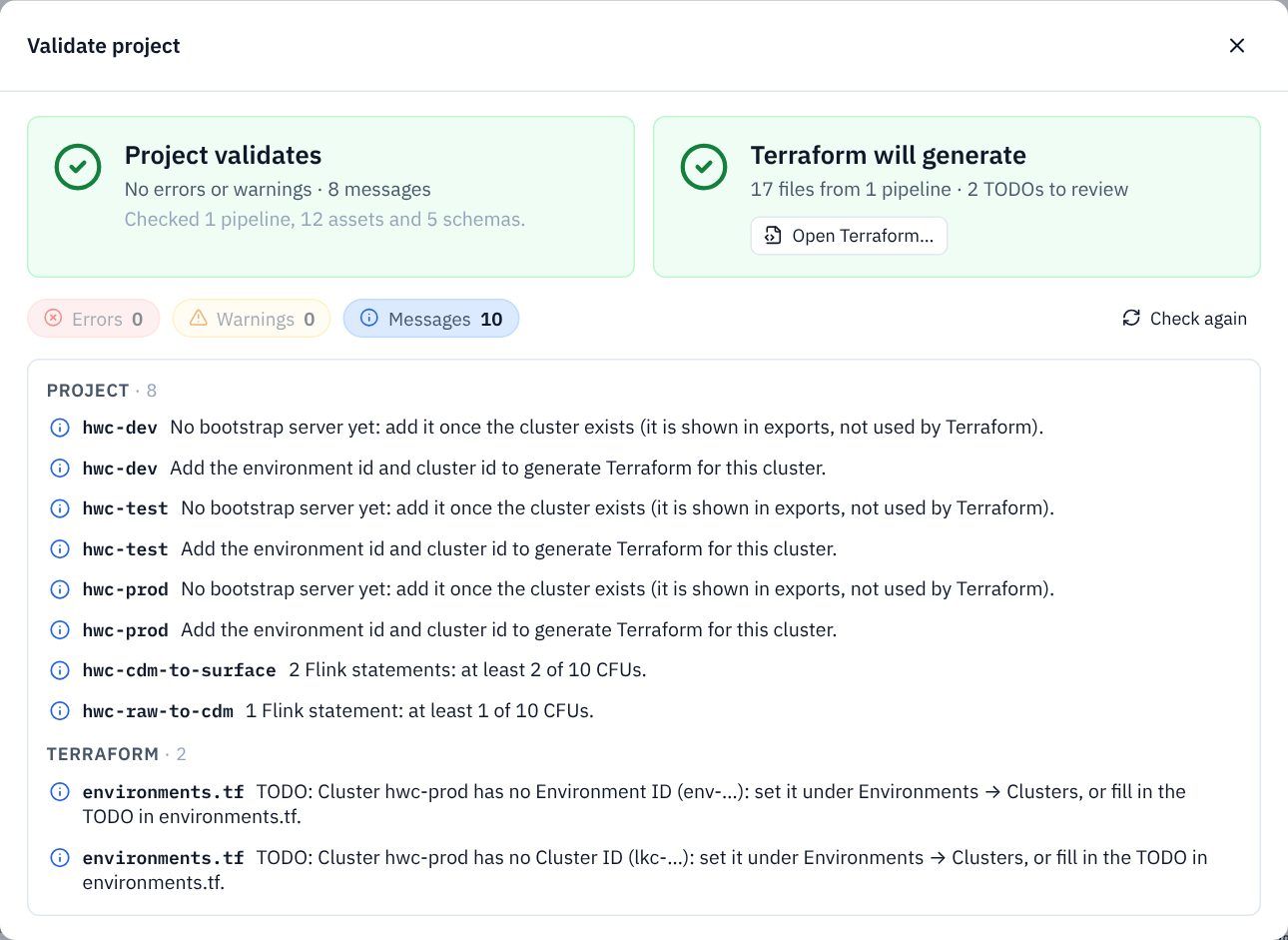
Save, fit the pipeline to the screen (Shift+1), and click Validate once more.
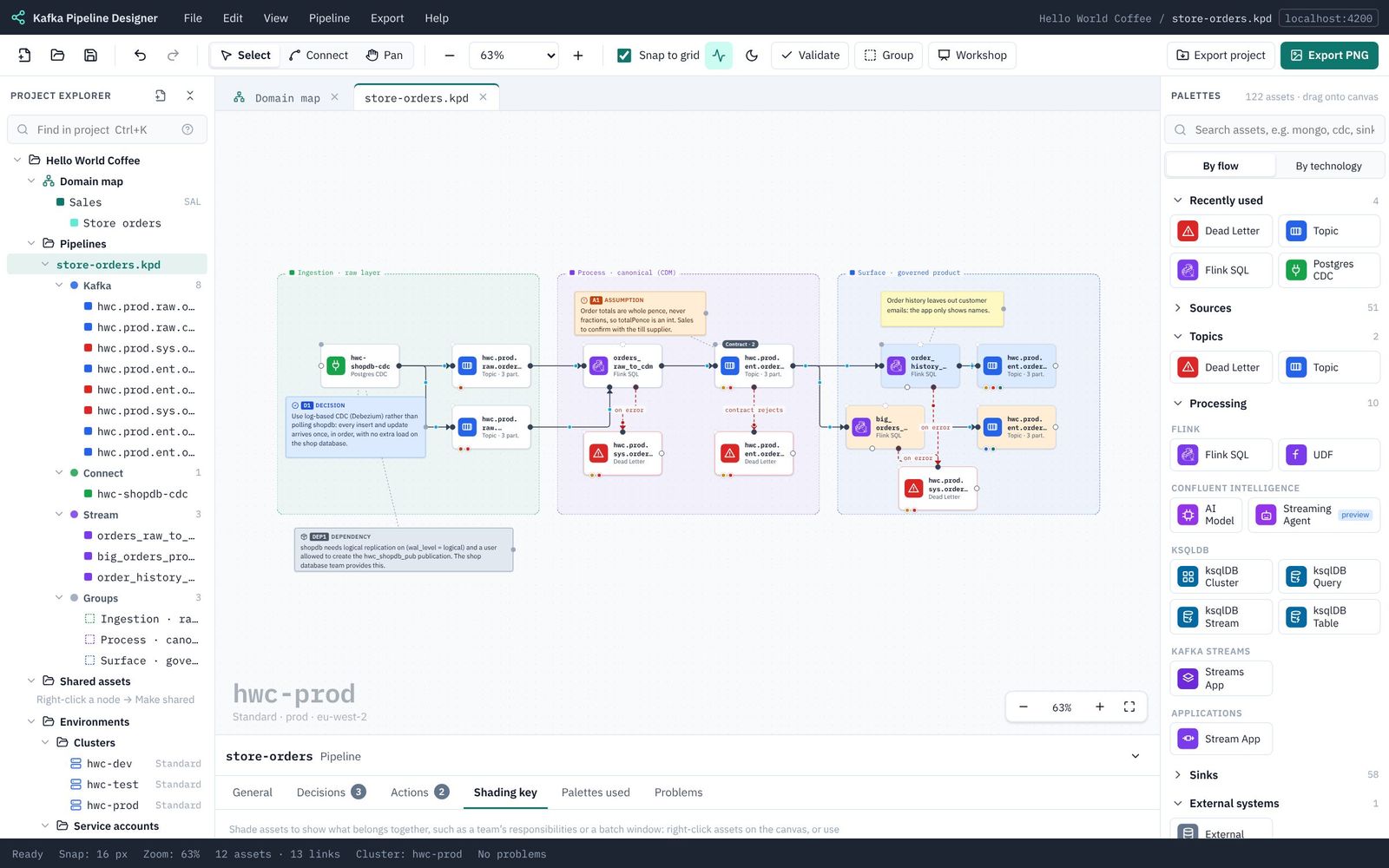
Export the PNG again: decisions, assumptions, dependencies and notes are in the picture, and the shading key is under the legend. Export the design document again too, and its section 13 now lists D1, A1, DEP1, ACN1 and ACN2.