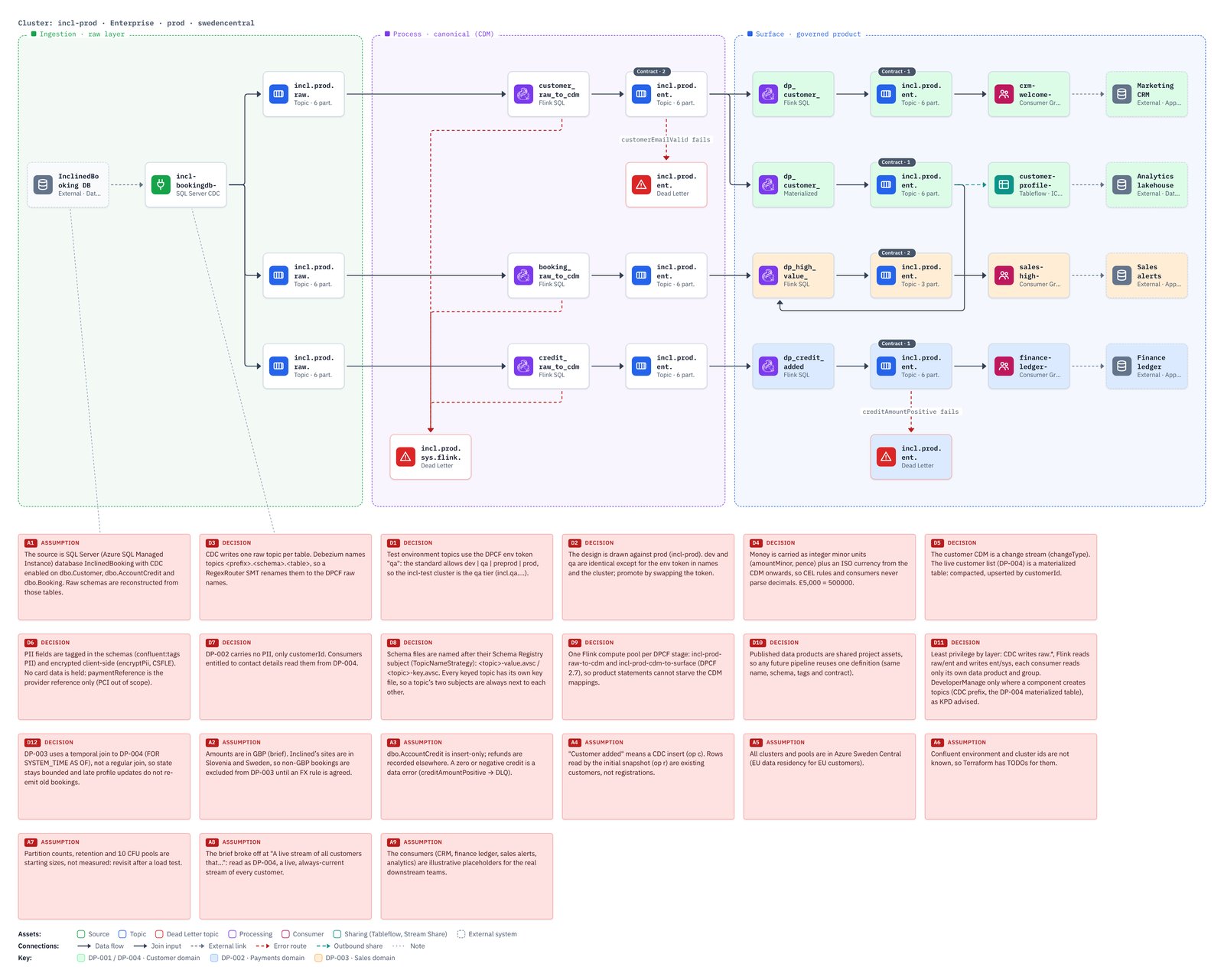
Groups, notes and shading
Make a diagram read well: box solution areas, annotate assets, and shade assets that belong together.
Groups
A group is a labelled background box for a solution area, a layer or a team's responsibility. Select some assets and press Ctrl/⌘+G (or the toolbar Group button): KPD sizes the box around them. Drag its label or border to move just the box, drag the square handles to resize, and set its name, colour and description in the properties panel. Groups are listed under each pipeline in the explorer, and they appear in exports and in the design document's architecture section.
You can also drag a Group box from the Arrange section at the bottom of the palette panel onto the canvas, or click it to add one in the middle of the view. Arrange has a Note too.
Notes
Add a note with N, Pipeline → Add note, from the palette panel’s Arrange section, or by right-clicking the canvas. Notes are yellow and can be resized.
Links in notes. A web address in a note, such as https://acme.atlassian.net/browse/ORD-42, is a link: click it to open the page in a new tab, so a note can point at the team’s Jira issue, Confluence page or runbook. To show a short label instead of the whole address, write it as [ORD-42](https://acme.atlassian.net/browse/ORD-42). The same works in decisions, assumptions and dependencies, and on the pipeline’s Decisions tab. Double-click the note as usual to edit the text. Only http and https addresses become links. The design document and technical export are Markdown, so the links work there too; in a PNG they are just text.
Attach a note to an asset or a group box by dragging from the note's connector (on its right edge) to the grey Notes connector on the asset's or box's top-left corner, or the other way round. While you drag, every connector the note can join lights up, so you can see where to drop it. Attaching to a box suits a note about a whole area, such as a decision that covers a DPCF layer. A note can be attached to several assets; the dotted grey line follows both when moved and appears in the PNG. Attached notes are quoted under their asset (or area) in the technical export. Selecting a note shows what it's about: its dotted lines turn teal and the assets they reach are outlined, so you can follow a note through a busy design. It works the other way too: select an asset to light up its notes, decisions and assumptions, or select a line to light up both ends. The highlight never appears in exported pictures. To declutter a busy design, untick View → Show note links: the dotted lines are hidden but every note stays attached, and selecting a note (or its asset) still shows its lines while it's selected. Hidden lines are left out of PNG exports too. KPD remembers the choice; tick it again to bring the lines back. Select the line and press Delete (or right-click → Unlink note) to detach it.
Shading
Give assets a pale background to show what belongs together: a data product, a team, a batch window. Right-click one or more assets and pick a swatch, or use the swatches in the properties panel header. On the pipeline's Shading key tab, say what each shade means; the meanings apply to the whole project. PNG exports get the key under the diagram, and the technical export lists each asset's shade.
Shading is presentation only: it never affects validation or Terraform, and the role colours on icons and borders stay as they are.